- Home
- Integrations
- OAUTH 2 - Authorization Code
OAUTH 2 - Authorization Code
To register an authorization of type OAuth 2 Authorization Code, access the Authorizations screen through the left side menu or the corresponding card on the Welcome screen.
NOTETo understand the differences between Sensedia Integrations authorization types, visit our Glossary.
On the Authorizations screen, click + AUTHORIZATIONS in the upper right corner to create your new registration.
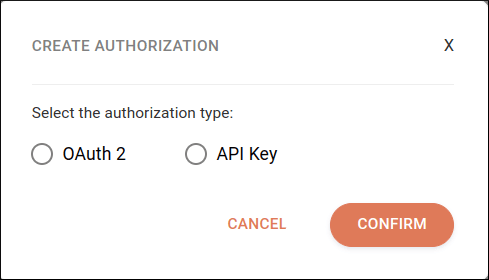
In CREATE AUTHORIZATION, select the OAuth 2 type and click CONFIRM:
To configure the authorization, fill in the following fields:
-
Name: authorization name. Alphanumeric field that allows special characters and empty spaces, with a limit of 1024 characters.
-
Description (optional): authorization description. Alphanumeric field that allows special characters and empty spaces, with a limit of 1024 characters.
-
Grant Type: select the Authorization Code grant.
Next, select the environment you want to configure:
- Staging
- Production
TIPData registered in the Staging environment will be used when executing Test Mode.
If necessary, you can select and configure both environments. For each environment, fill in the following fields:
-
Redirect URL: locked field. To copy the URL, click the
 button on the right.
The URL must be copied and configured on your authentication server whenever OAuth 2 authentication is used.
button on the right.
The URL must be copied and configured on your authentication server whenever OAuth 2 authentication is used. -
Authorization URL: enter the authorization server URL.
-
Token URL: enter the token URL.
-
Client ID: enter the client ID registered with the API provider.
-
Client Secret (optional): enter the client secret registered with the API provider. To view the value, click the
 button on the right.
 -
Scopes (optional): enter which scope values you want to send in the authorization request. Limit of 250 characters per value. Maximum of 500 values. To delete a specific scope value, click the x on the right side of the tag. To delete all values, click the X on the right side of the field.
-
Client Authentication: presents the following options:
-
Send as Basic Auth header (default): the Auth authentication request will be sent in the request header.
-
Send client credentials in body: the Client Credentials authentication request will be sent in the request body.
-

To validate the entered data and make a request to the server generating a new token, click CONNECT. In the new pop-up, log in with your credentials to allow access.
If the data is validated successfully, the button will change to CONNECTED.
If new changes occur in the entered data, you must click CONNECT again.
To save the authorization settings, click SAVE.
NOTEThe SAVE button saves the settings for the selected environment. If you configure one environment and start configuring another, the button will be locked until all fields of the second environment have been filled in.
To exit without saving your changes, click CANCEL and confirm the action.