- Home
- Integrations
- Deployment Management
Deployment Management
- View the current deployment status of your integration flows.
- Take actions according to the status of a specific flow (perform undeploy, redeploy, view deployment history, logs, etc.).
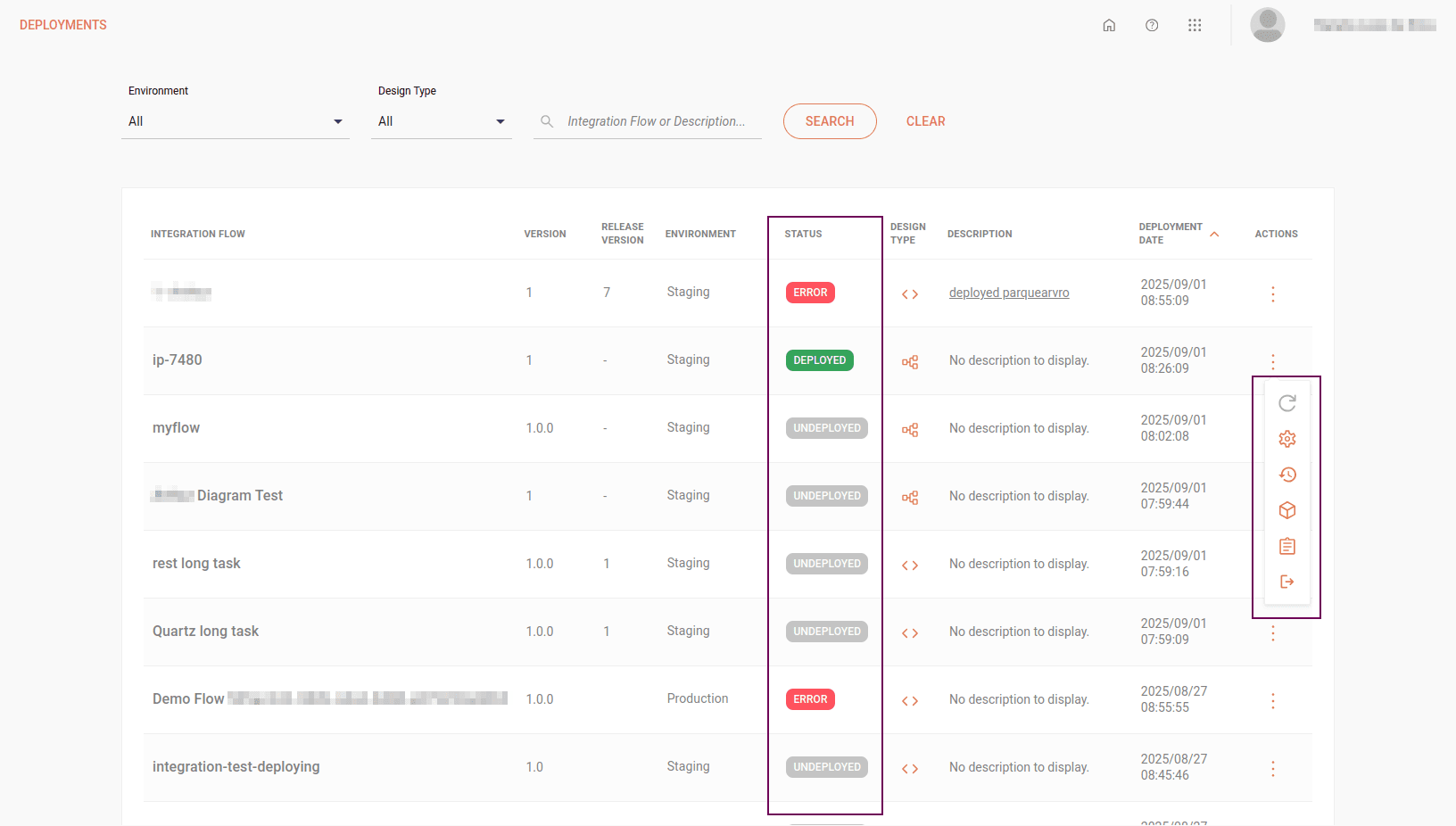
View the deployment status of an integration
The deployment list shows the deployed integrations in descending order by deployment date and time. Deployment statuses are displayed in the Status column (highlighted in the image above):
- Undeployed: flow that has not been deployed yet.
- Deploying: flow currently in the process of being deployed.
- Deployed: flow successfully deployed.
- Undeploying: flow being removed from deployment.
- Error: flow that has a deployment error.
In addition, the table displays the following information about the integrations:
- Integration flow name
- Version assigned to the flow at creation
- Version assigned to the release (automatic)
- Deployment environment (Staging or Production)
- Flow design type (Canvas or Diagram & Source Code)
- Integration flow description
- Deployment date and time
NOTERelease creation only applies to Diagram & Source Code type flows. The "Release Version" column will display a dash ("-") for flows that do not yet have a release created.
Filters
At the top of the screen, you can search for integration flows using the following filters:
-
Environment: select the flow deployment environment, which can be Staging or Production.
-
Design Type: select the flow design type, which can be Canvas or Diagram & Source Code.
To search for a specific deployment, type the integration flow name or the description entered at the time of deployment and click SEARCH.
Manage deployments
Action | Icon | Description |
|---|---|---|
| View environment variables (Environment variables) |  | View the environment variables registered for the flow. All fields are read-only. |
| Remove deployment (Undeploy) |  | Remove deployment of an integration flow. To confirm the action, type UNDEPLOY and click CONFIRM. |
| Try to deploy an integration again (Retry Deploy) |  | In case of error during flow deployment, you can try to deploy it again by clicking this button. |
| View integration logs (View Integration Logs) |  | View deployment logs in Sensedia Analytics. |
| View deployment history (Deployment History) |  | View the deployment history of a single integration flow (last five deployments). |
| Settings (Settings) only integrations with REST trigger |  | Copy the URL to execute a deployed integration (Deployed). Additionally, in Canvas type flows, manage the API Key. By enabling the API Key field, you can add up to two API Keys per deployed integration flow. It is also possible to activate or deactivate the added keys. |