- Home
- Integrations
- REST
REST
With the REST trigger, you can execute the integration flow through an external call using one of the HTTP methods.
Below, learn how to add it to the canvas and configure its form.
Add the REST trigger to the canvas
Click the  icon in the left editing menu;
Select the REST trigger.
The  Start is replaced by the trigger as soon as you add it to the canvas.
Configure its form.
TIPTo remove the REST trigger from the canvas, select it and click the
button. Deleting the trigger will disable the Test Mode function.
Configuring the form
Select the trigger on the canvas.
Click the edit icon  .
.
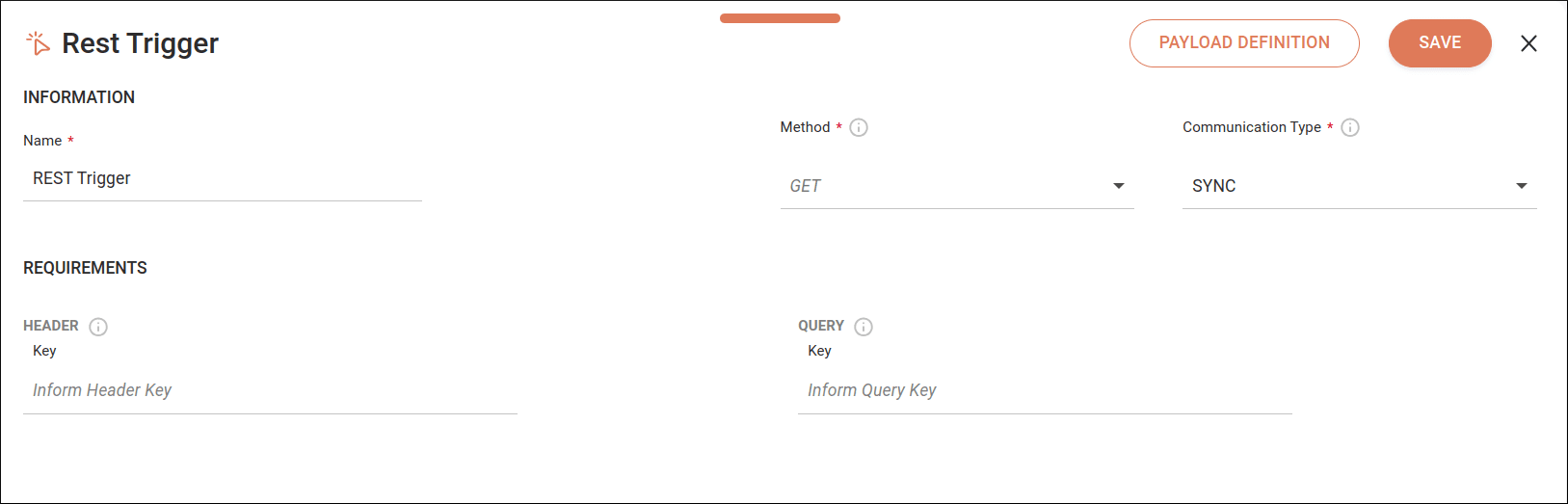
Fill in the following form fields:
- Name: enter the trigger name. The name cannot be used more than once in the same integration flow. By default, the field displays the name REST Trigger.
- Method: select the HTTP method to be used.
- Communication Type: define whether the call will be synchronous (SYNC) or asynchronous (ASYNC). By default, the SYNC option will be selected.
NOTEFor an asynchronous call, the system will return a 202 response.
- Header/Key: enter the Header parameters. Alphanumeric field that allows special characters (
_,.and-), with a limit of 60 characters. - Query/Key: enter the Query parameters. Alphanumeric field that allows special characters (
_,.and-), with a limit of 60 characters.
NOTERegistering the same key more than once is not allowed.
If you don't need to define the payload, click SAVE.
TIPTo delete a key in any of the components, click the
Payload definition
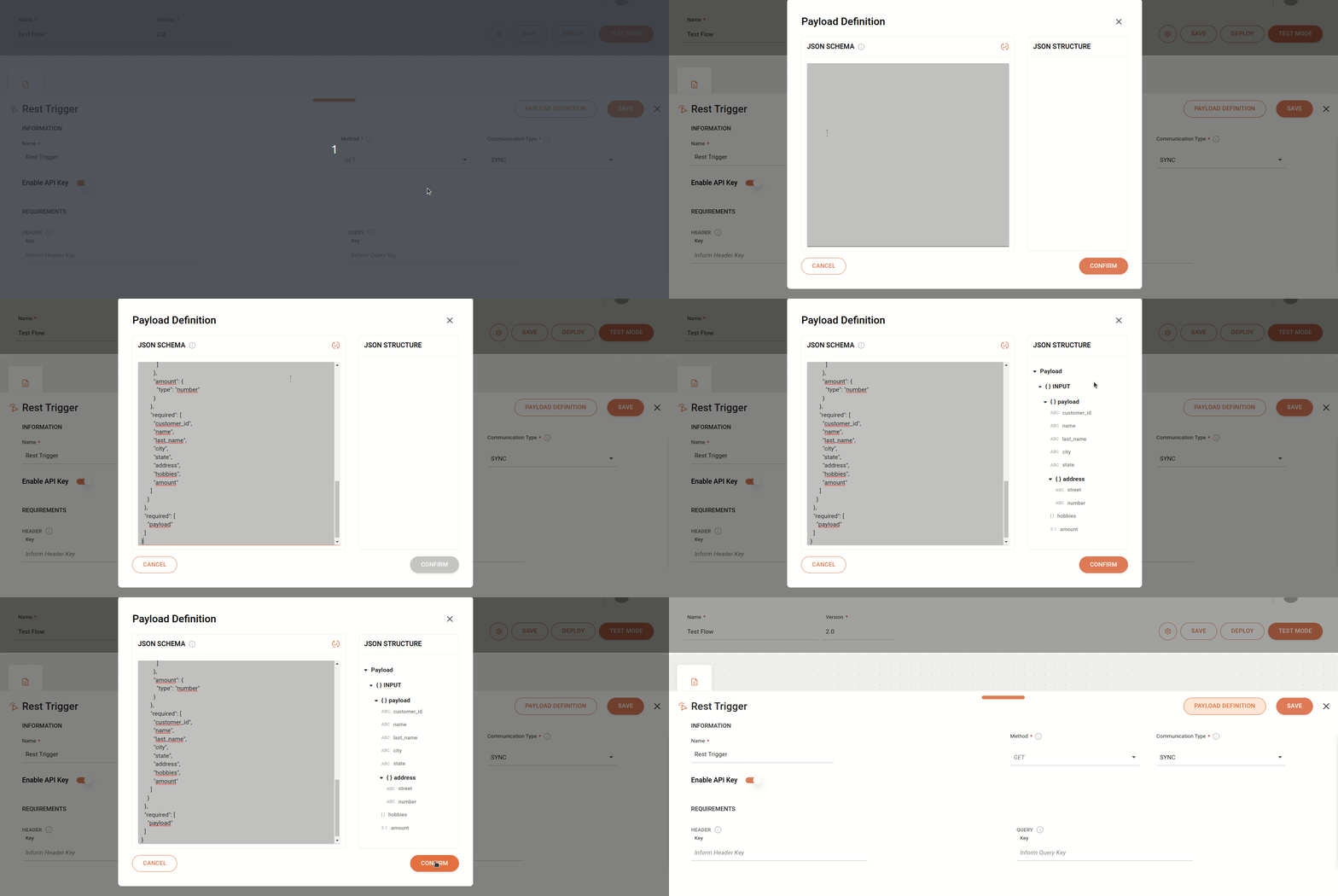
Mapping the structure of the REST trigger's input payload will facilitate the use of mapped fields in other components of the integration flow. You can edit the payload definitions at any stage of creating the integration flow.
NOTEIf you have already created a JSON schema, when you click PAYLOAD DEFINITION, you will see the data already registered.
To configure the input payload structure, follow the steps below:
Click PAYLOAD DEFINITION in the upper right corner of the REST trigger screen.
In the window that opens, you will find two columns:
-
JSON SCHEMA: In this column, enter the JSON schema that will define the structure transmitted in the request input. There is no character limit. To validate the data format, click the refresh icon on the right
 .
. -
JSON STRUCTURE: This column is read-only. It is used for viewing and validating the data format from the JSON SCHEMA column.
To delete an attribute from the payload definition, delete the corresponding row in the JSON schema column.
To confirm the data, click CONFIRM.
NOTEIf the JSON schema is not in the correct format, you will see a message that the JSON schema is incorrect.
Back on the REST trigger configuration screen, click SAVE to save the records.
TIPFor more information about JSON schema specifications and how to create a validation file according to your needs, visit JSON SCHEMA.