1. Home
  2. Integrations
  3. Permission Configuration

Permission Configuration

Permissions and access control system in Sensedia Integrations

Basic concepts

The following definitions are fundamental to understanding how permissions work in Sensedia Integrations:

  • Resource: represents a functional area of the system, such as Authorizations, Connectors, Deployments, etc.
  • Permission: specific action allowed on the resource, such as create, delete, list, update, view, etc.
  • Role: set of permissions assigned to a user to define their access level.

Each user must have an associated role, with the definition of their permissions in the system. This means it is possible to have more detailed control over the actions each user can perform on each resource. In addition to defining whether a user can view and/or edit a specific resource, it is also possible to specify whether they can list, create, update, and/or delete resources.

Integrations has 3 pre-defined roles with different permission levels:

  • Integrations Admin
  • Super Admin
  • Read-only

You can also create new roles and define the permissions they will have.

IMPORTANT

Configure permissions and roles directly in Access Control. Check the documentation for more details.

Available permissions in Sensedia Integrations

Following are the permissions available in Integrations organized by resource:

AI Copilot

Permission
Description
Use AI Chat for Source Code GenerationAllows using the AI Copilot chat to create CAMEL YAML DSL scripts.

Authorizations

Permission
Description
Create and update authorizationsAllows creating and editing authorizations.
Delete authorizationsAllows deleting authorizations.
List authorizationsAllows listing existing authorizations.
List and view authorizationsAllows listing and viewing details of an authorization.

Connectors

Permission
Description
Create and update connectorsAllows creating and editing connector configurations.
Delete connectorsAllows deleting a connector.
List connectorsAllows listing existing connectors.
List and view connectorsAllows listing and viewing connector details and configurations.

Data Sources

Permission
Description
Create data sourceAllows creating, editing, listing, and viewing data sources.
List data sourcesAllows listing existing data sources.
List and view data sourcesAllows listing and viewing details of a data source.
Delete data sourcesAllows deleting data sources.

Deployments

Permission
Description
Deploy and undeploy flowsAllows deploying and removing integration flows in all environments.
List deploymentsAllows listing existing deployments.
View history, environment variables, and configurationsAllows viewing flow execution history, environment variables, and deployment configurations in all environments.

Executions

Permission
Description
List executionsAllows viewing the status and logs of integration flow executions.

Integration Flows

Permission
Description
Create and update integration flowsAllows creating and editing integration flows.
Delete integration flowsAllows deleting integration flows.
List integration flowsAllows listing existing integration flows.
List and view integration flowsAllows listing and viewing details of integration flows.

Releases

Permission
Description
Create integration flow releasesAllows creating, listing, and viewing releases (versions of an integration).
Delete release in integration flowAllows deleting a release.
List and view integration flow releasesAllows listing and viewing releases.

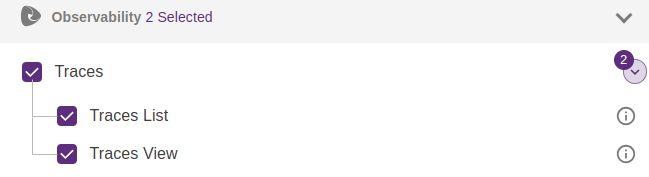
In addition to the permissions above, enable the trace viewing permission.

To do this, when assigning permissions to a user's role in Access Control:

  • Select the Observability permission grouper.
  • Select the permissions:
    • Traces
      • Traces List
      • Traces View
IMPORTANT

The trace viewing option is only visible for executions performed after the traces feature has been enabled.
Observability Traces

See how to create a role and enable permissions in Access Control.

How happy are you with this page?

We use cookies to enhance your experience on our site. By continuing to browse, you agree to our use of cookies.Learn more