- Home
- Integrations
- Resources
Resources
To make your integration flow more organized and flexible, you can use resources files and flow variables.
For some Apache Camel components, such as "JSONata", it is necessary to use scripts stored in separate files. These files can be created in Resources, regardless of the file extension. This way, you can reference them directly in the main flow, ensuring they are used during the integration flow execution.
IMPORTANTAll files added to the Resources folder are automatically added to the integration's classpath and must be referenced using classpath locators, according to each component's documentation.
In the example below, we reference the resource file extractTotal.jsonata in the Resource Uri field of the JSONata component:
Creating a resource file
Resources files can be created in both the Diagram tab and the Source Code tab.
In the Diagram tab:
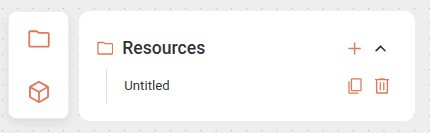
Click the resources icon  on the left side of the canvas.
Click +.
Click the file and specify the name and extension: for example, jsonata.yaml, teste.txt, etc.
Add the file content in the text editor.
Save the resource file by clicking SAVE.
In the Source Code tab, in the folder structure Source > Resources:

Click +, to the right of the Resources folder.
Specify the file name and extension: for example, jsonata.yaml, teste.txt, etc.
TIPA
to the right of the file name indicates that the file has not been saved.
A
, indicates that there are errors in the file.
File name requirements
The file name must meet the following criteria:
- Maximum size: 100 characters.
- Allowed characters: alphanumeric,
-,_and.. - Uniqueness: each file name must be unique, but you can have, for example,
test.yamlandtest.json.
Extension types
-
If the file extension is
.yaml,.jsonor.xml, it will be formatted with colors and layout. If the structure is incorrect, a notification will be displayed. -
If the file extension is different from those mentioned, the file will not be validated. However, you can create your script normally.
Limits
- There is no limit to the number of files the folder can contain.
- A file can be a maximum of 1 MB.