- Home
- access-control
- Roles and permissions
Roles and permissions
In Roles you can control user permissions and manage all access according to your company's security needs and policies. This allows you to have greater control, limiting the actions and privileges of users who use the resources available in Sensedia products.
Rules are applied to each user, ensuring that resources are accessed only by authorized people.
Roles can be assigned to a user at the time of creation or editing of that user.
You can create and edit your roles, as shown below, or you can use the default roles.
The main Roles page of Access Control brings a list with existing roles. Besides the role name, you can see the description (when it exists) and the products to which the role applies.
Super Admin users
A user who has Super Admin role permissions can perform all available operations, however:
- a Super Admin user cannot remove themselves (that is, cannot delete their own Super Admin user);
- only a Super Admin user can remove another Super Admin;
- no user can edit the Super Admin role permissions.
Creating a role
To add a new role:
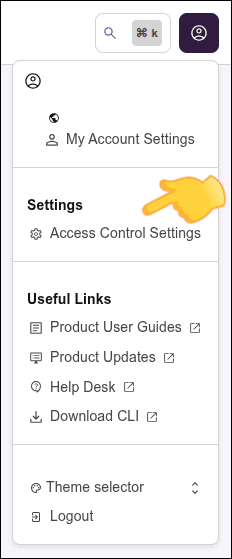
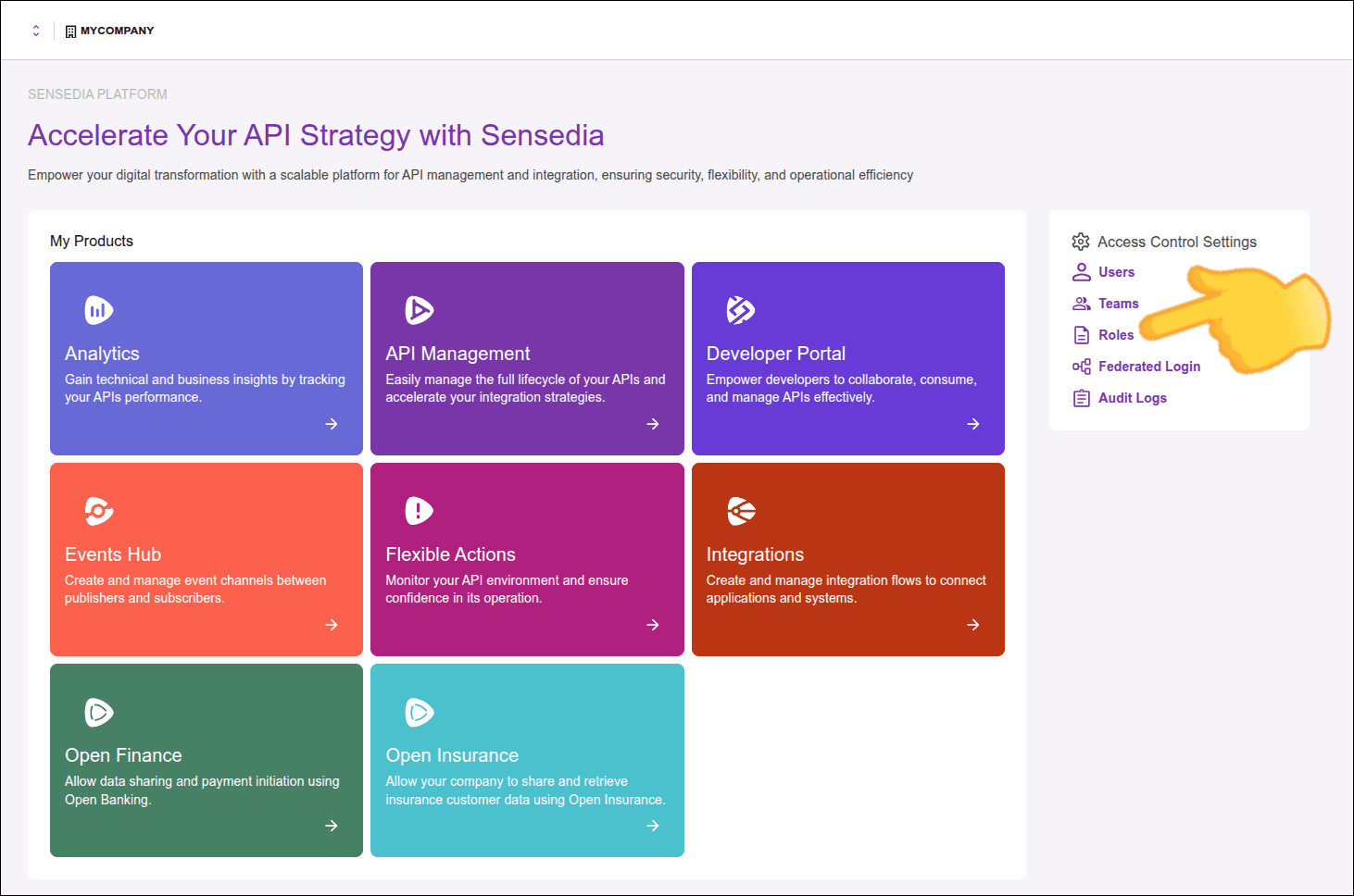
Access Roles in Access Control Settings.
You can access these settings through the icon in the upper right corner of any Sensedia product screen, or through the right sidebar menu of a home page.
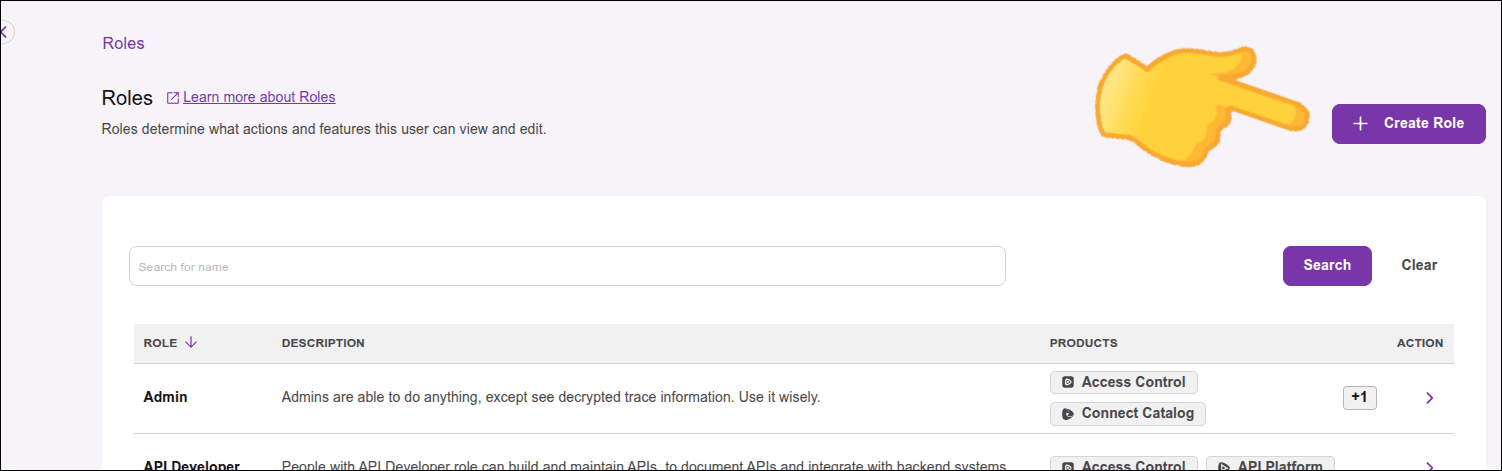
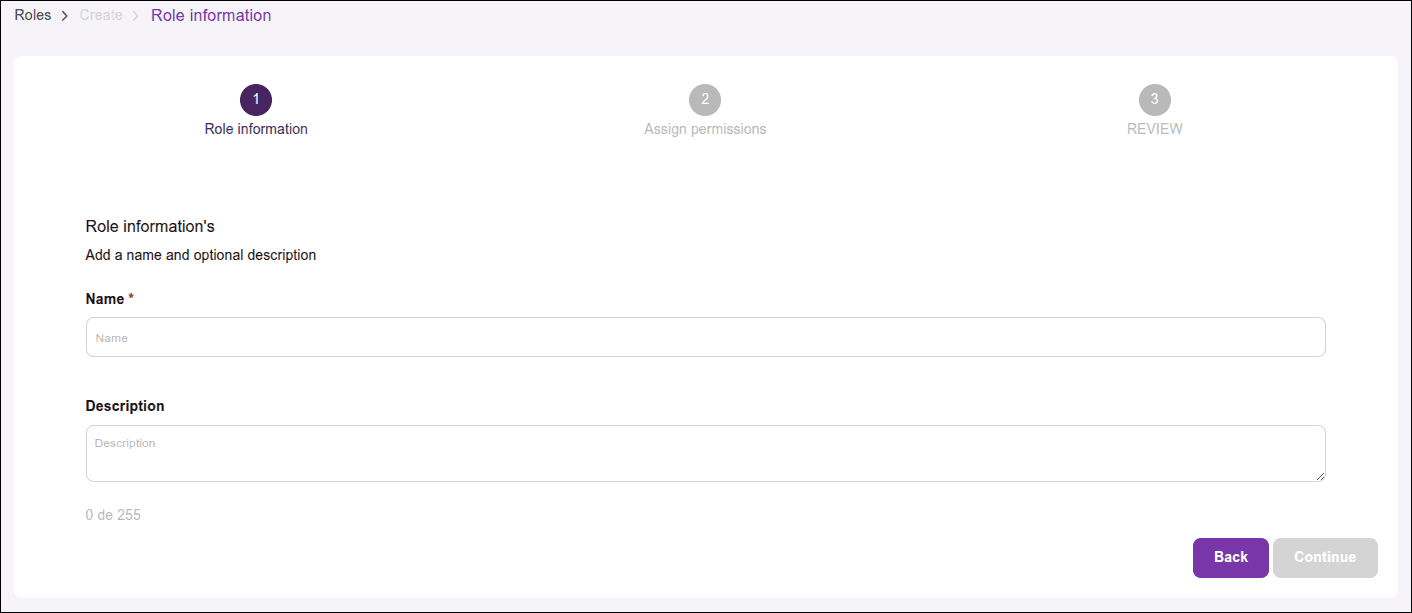
On the Roles screen, click the Create Role button in the upper right corner of the screen.
Enter:
- Name: Role name (required).
- Description: Role description (optional).
Click Continue.
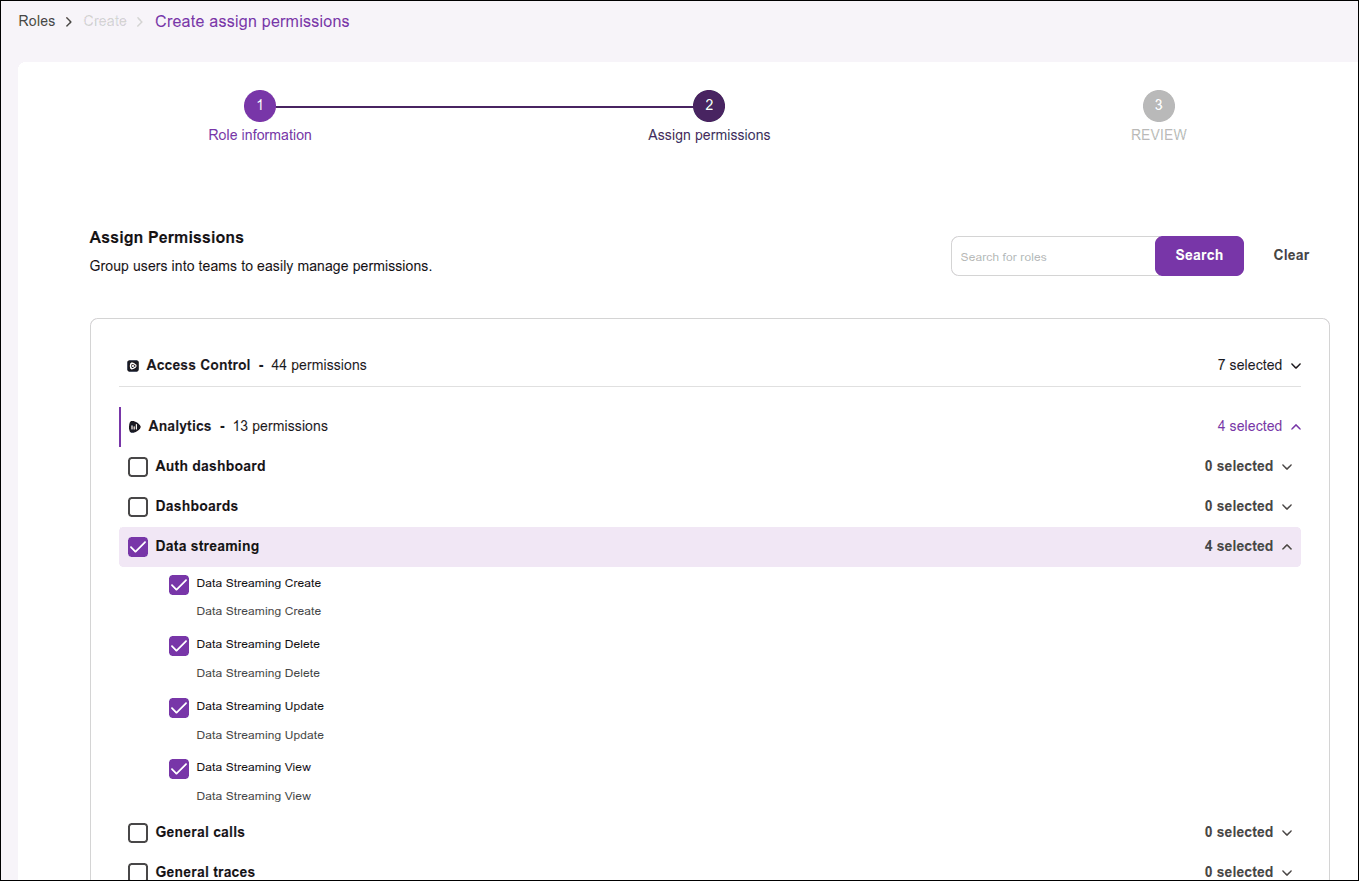
In Assign permissions, select the permissions you want to add to this role and click Continue at the bottom of the screen.
Review the role information and click Create Role to complete role creation.
Editing a role
NOTEDefault roles cannot be edited.
To edit a role, access Roles in Access Control Settings.
You can access these settings through the icon in the upper right corner of any Sensedia product screen, or through the right sidebar menu of a home page.
To edit role name and/or description:
On the Roles screen, click > in the Actions column of the role row you want to edit.
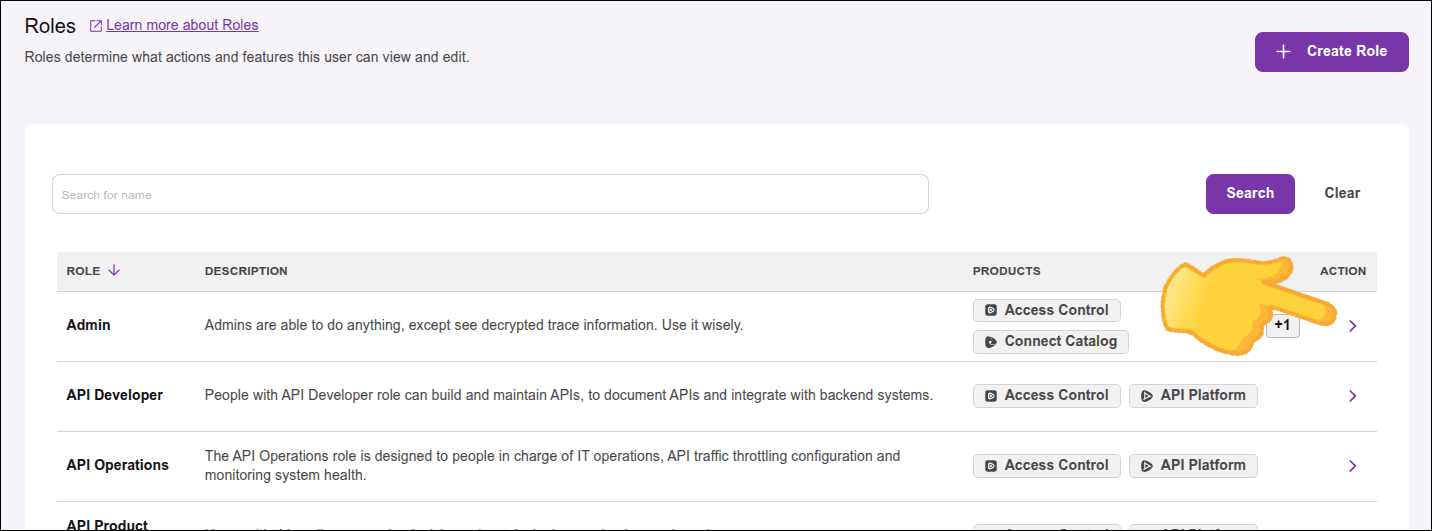
In the Role Info tab, click Edit Role.

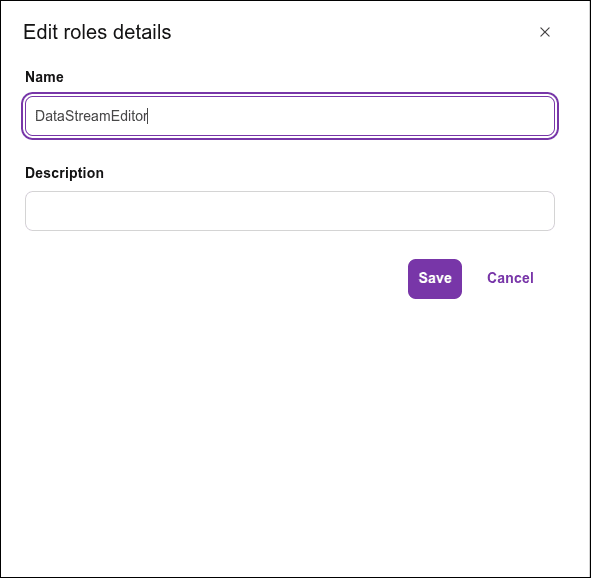
Edit the role name and/or description and click Save.
To edit role permissions:
On the Roles screen, click > in the Actions column of the role row you want to edit.
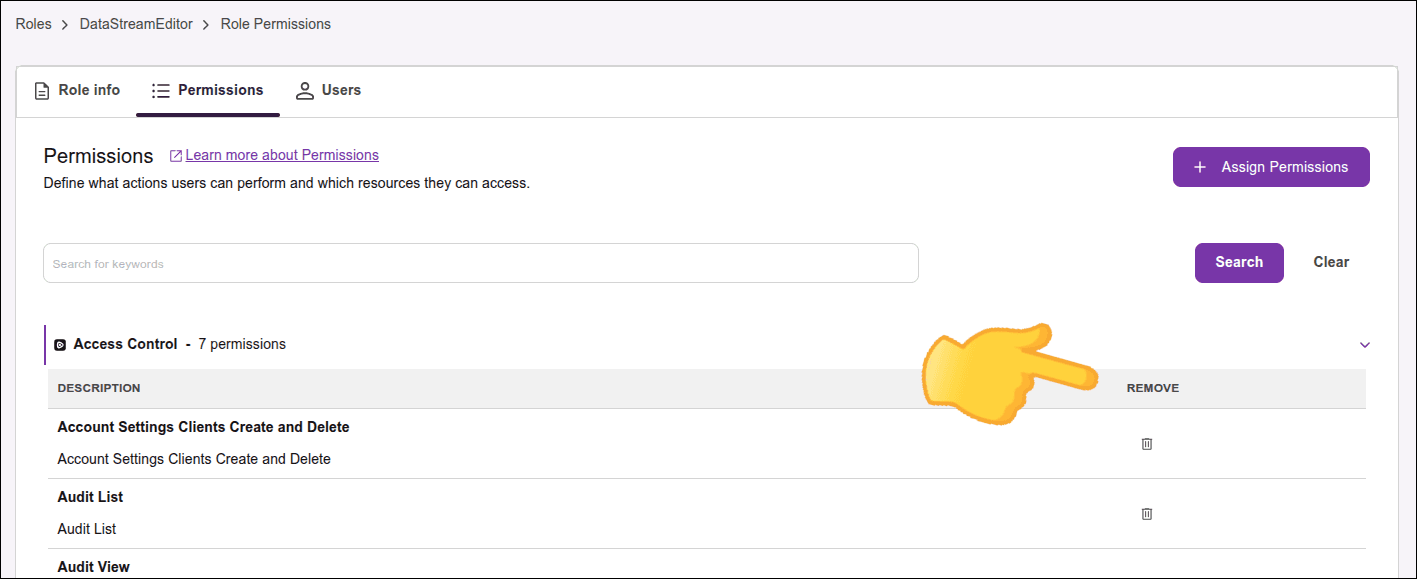
Click the Permissions tab.

To remove a permission, click the trash icon located in the Remove column of the corresponding row of the permission you want to remove.
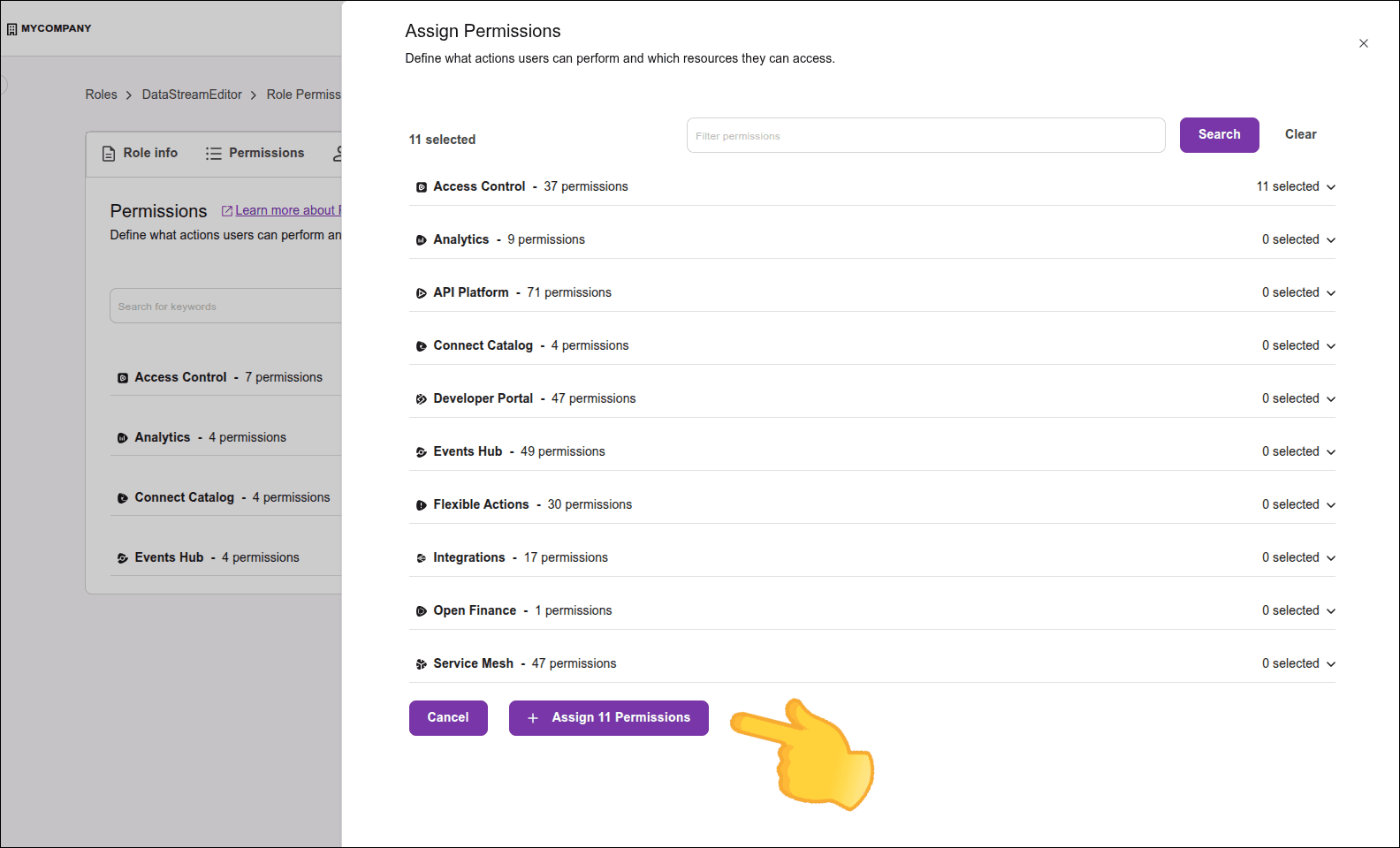
To add a permission:
- Click Assign Permissions.
- Select the permissions you want to add to the role.
- At the bottom of the screen, click Assign n Permissions, where 'n' is the number of permissions you selected.
Editing users associated with a role
The USERS tab brings the list of users who have the permissions associated with the selected role. From this tab, you can:
- perform a keyword search for users;
- see the email, name, and status of the user(s);
- remove a user from this role (removing from that user the permissions related to this role);
- assign user(s) to the selected role (see below).
Some exceptions apply to the Super Admin role. See the table in the Super Admin Users section above.
To edit users associated with a role:
Access Roles in Access Control Settings.
You can access these settings through the icon in the upper right corner of any Sensedia product screen, or through the right sidebar menu of a home page.
On the Roles screen, click > in the Actions column of the role row for which you want to add users.
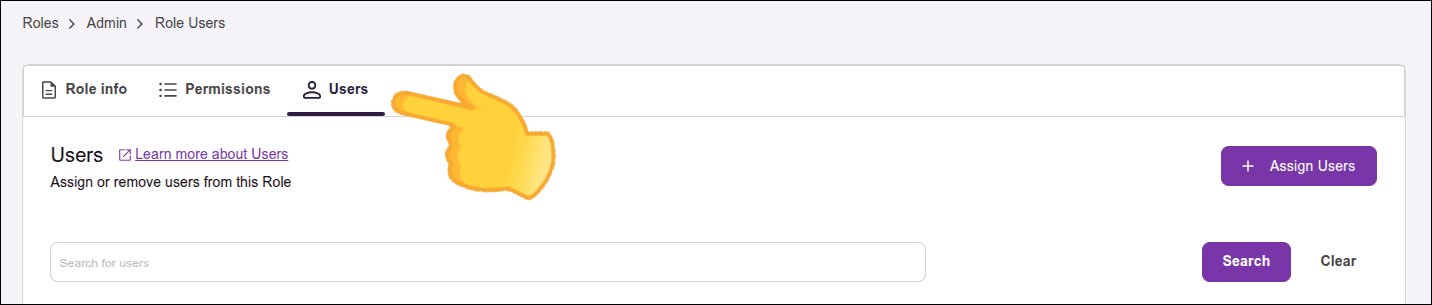
Click the USERS tab.
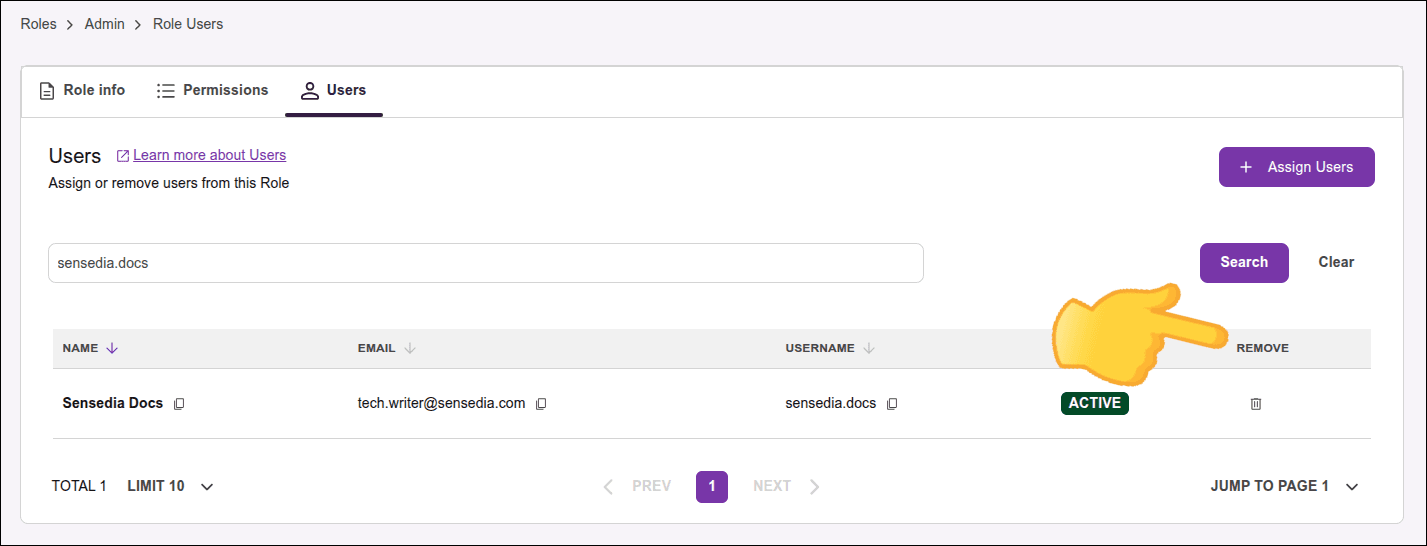
To remove a user associated with this role, click the trash icon located in the REMOVE column of the user row you want to remove.
The user will no longer have the permissions associated with this role.
To assign a user to this role:
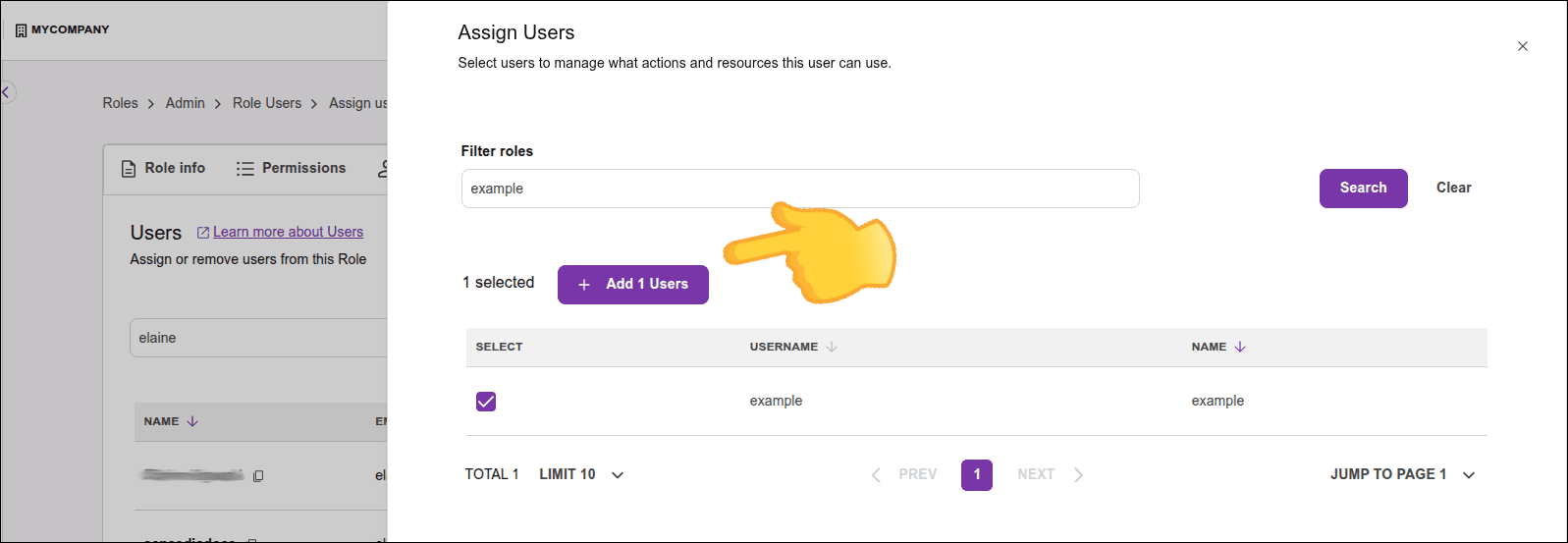
- Click Assign Users.
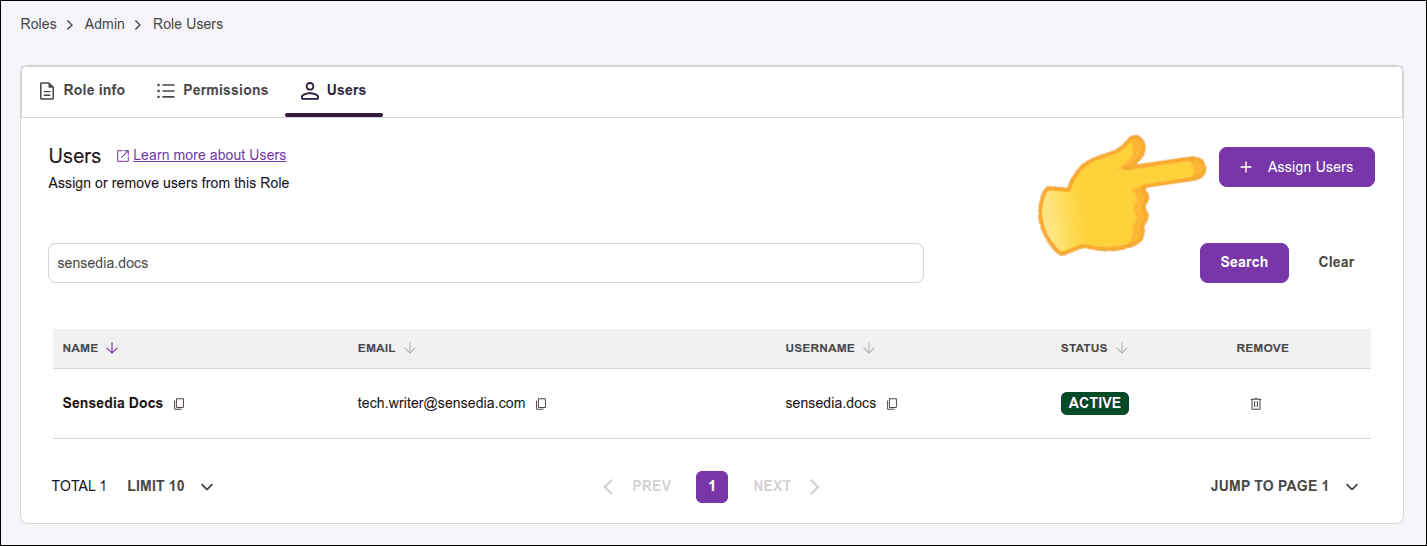
- Select the users you want to assign to the role.
- Click Assign n Users, where 'n' is the number of users you selected.
The assignment will be effective and the selected users will have the permissions associated with this role.