GSuite
Configuring a GSuite connection
There are three steps to configure a GSuite connection:
- Create a federated login in Access Control
- Create a client app in Google Cloud Console
- Configure the federated login in Access Control
NOTEIt is not possible to generate Client Credentials using federated logins.
To configure a GSuite connection, follow the steps below:
Create a federated login in Access Control
Access the Federated Login screen from the left menu.
Select the GSuite federated login type and click CONFIGURE FEDERATED LOGIN.
Copy the URL from the Callback URL field.
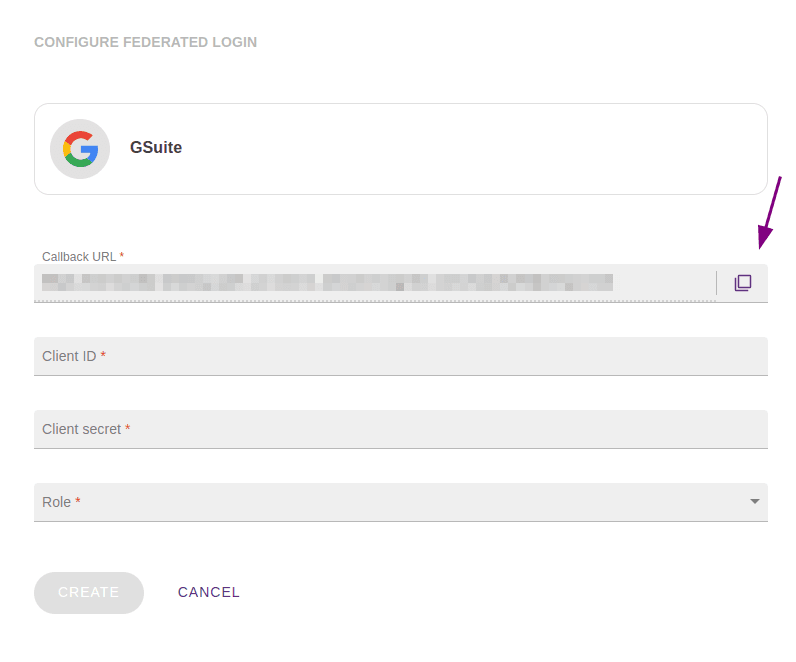
IMPORTANTThis is the URL to which the user should be returned after authentication and will be used later in the Google Cloud Console configuration.
Create a client app in Google Cloud Console
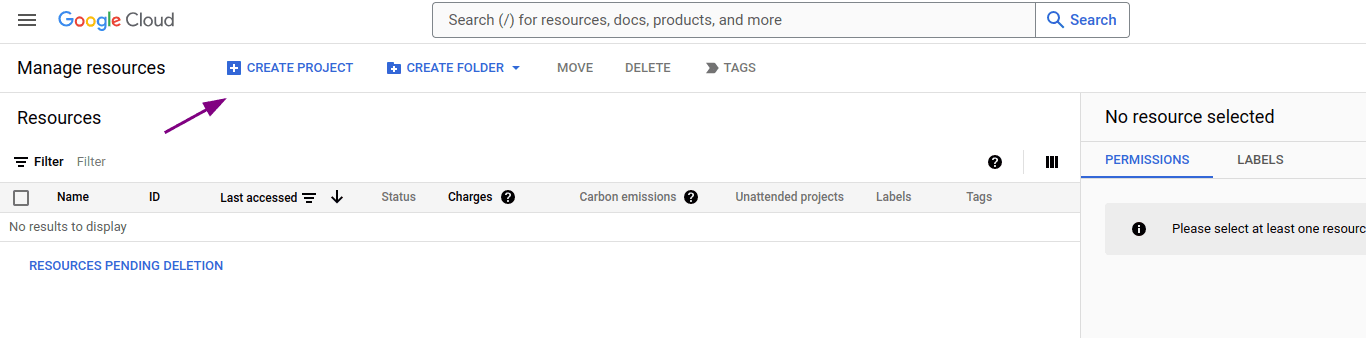
In a new tab, access the Google Cloud Console.
Create a new project by clicking CREATE PROJECT in the upper left corner of the screen:
Enter the project name and location.
Then click CREATE.
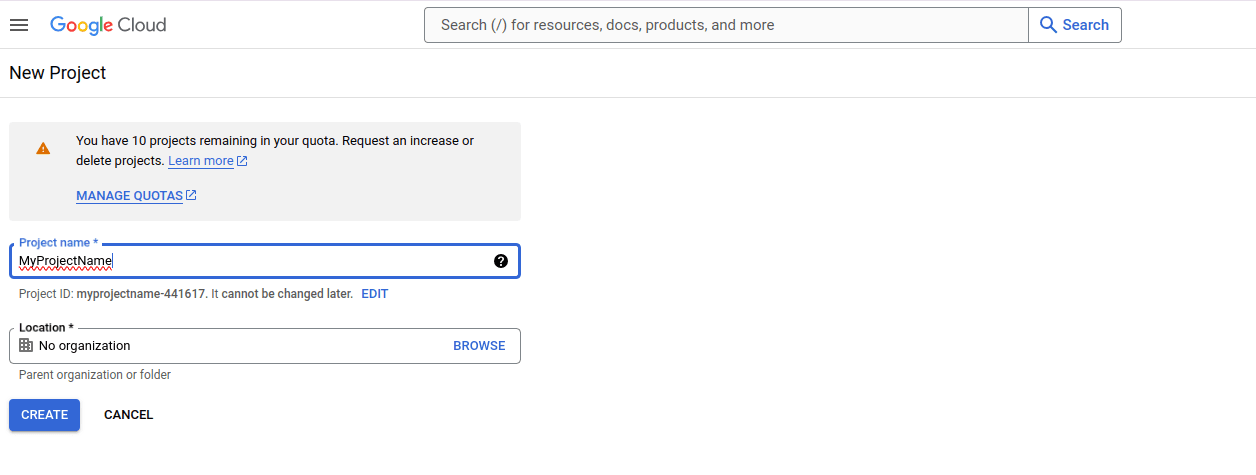
Wait for your project to be created.
A message will be displayed in the notifications icon  .
.
Click the notifications icon and select the newly created project.
You can also use the search bar to locate and select it.
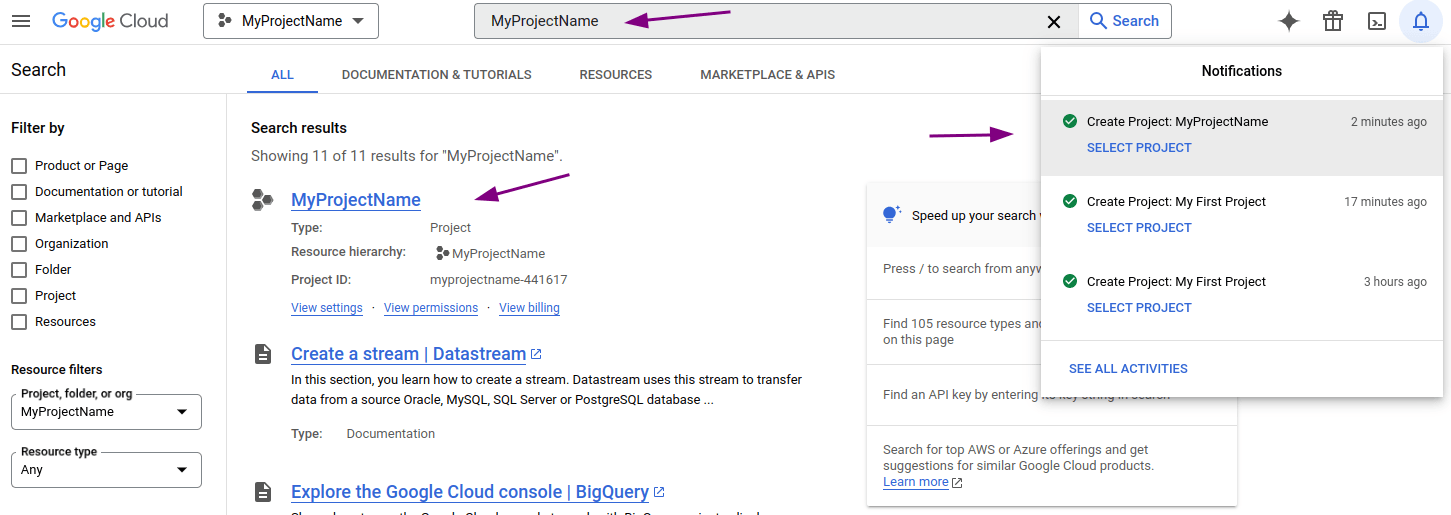
After selecting the project, click the menu icon  in the upper left corner of the screen.
Select APIs & Services > Credentials.
in the upper left corner of the screen.
Select APIs & Services > Credentials.
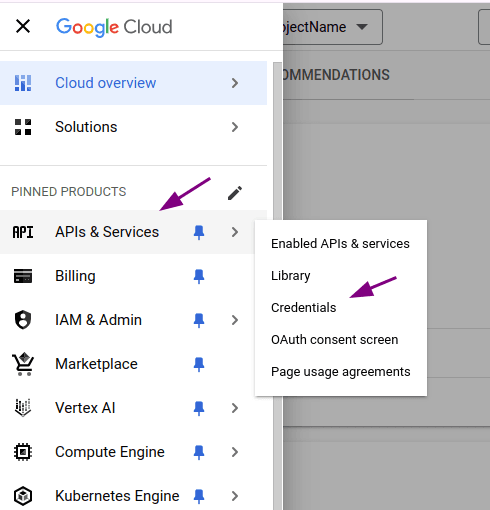
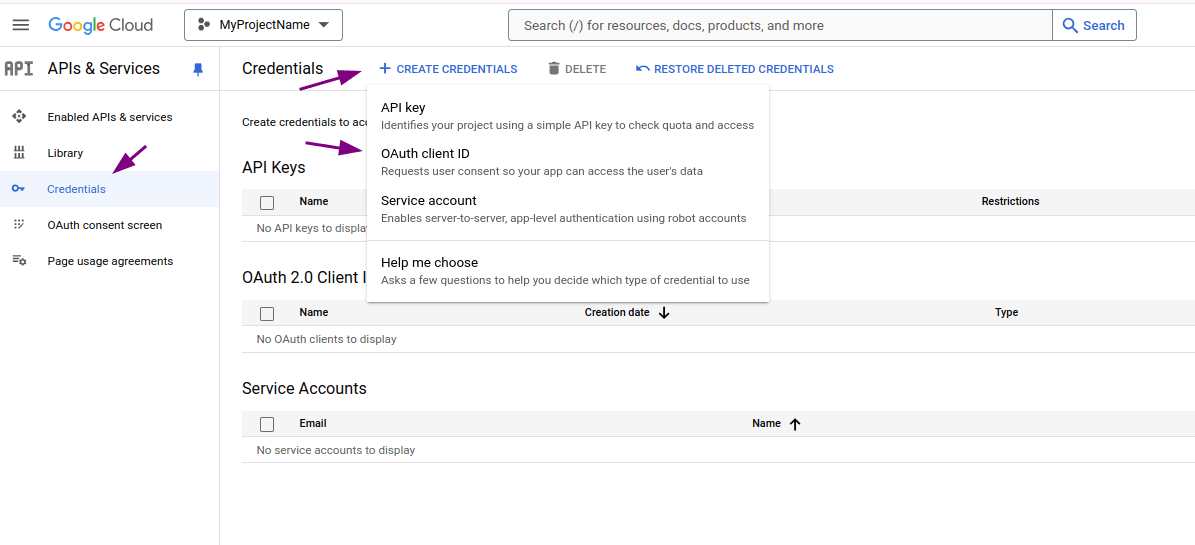
When accessing the Credentials screen, click CREATE CREDENTIALS and select the OAuth client ID option.
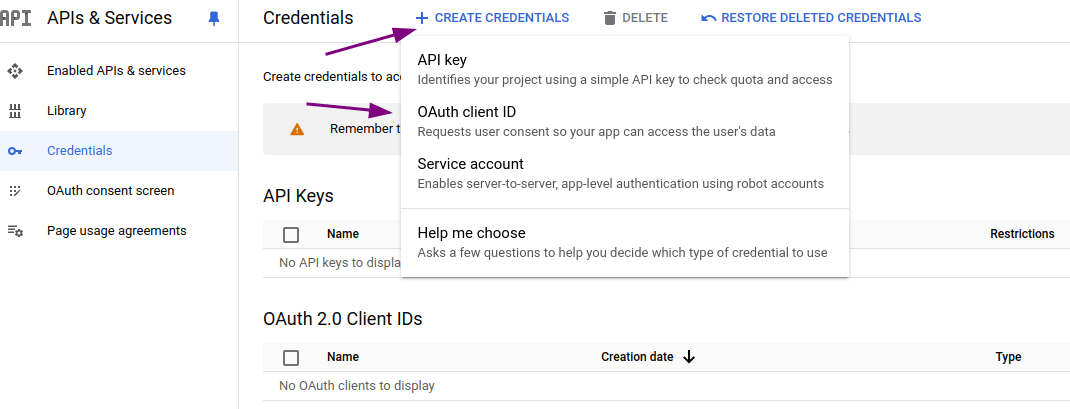
Then click CONFIGURE CONSENT SCREEN.

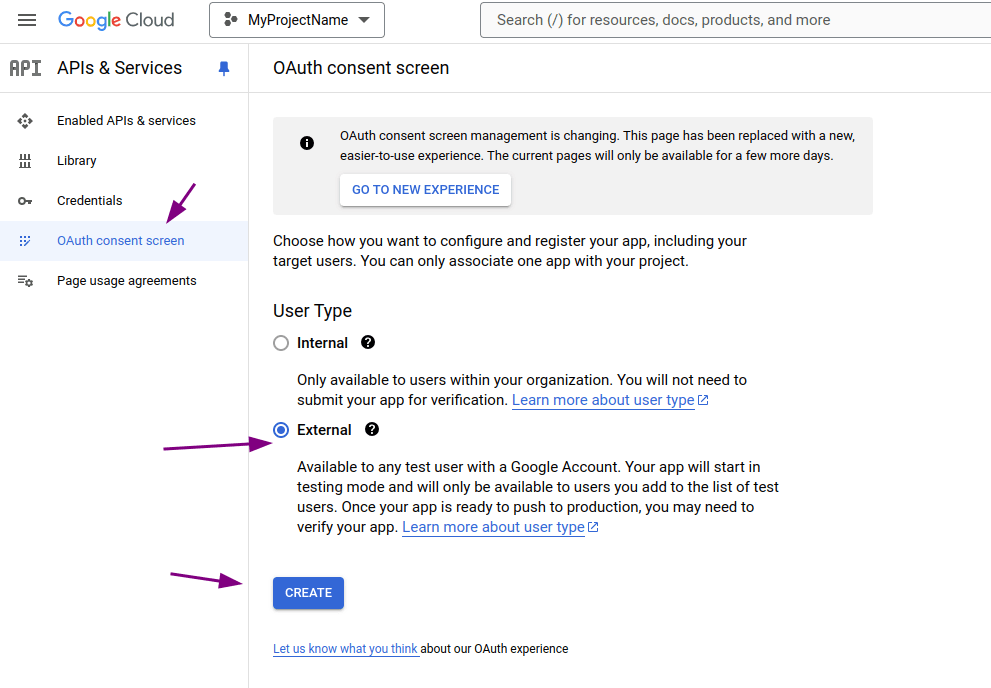
Select the External option and click CREATE.
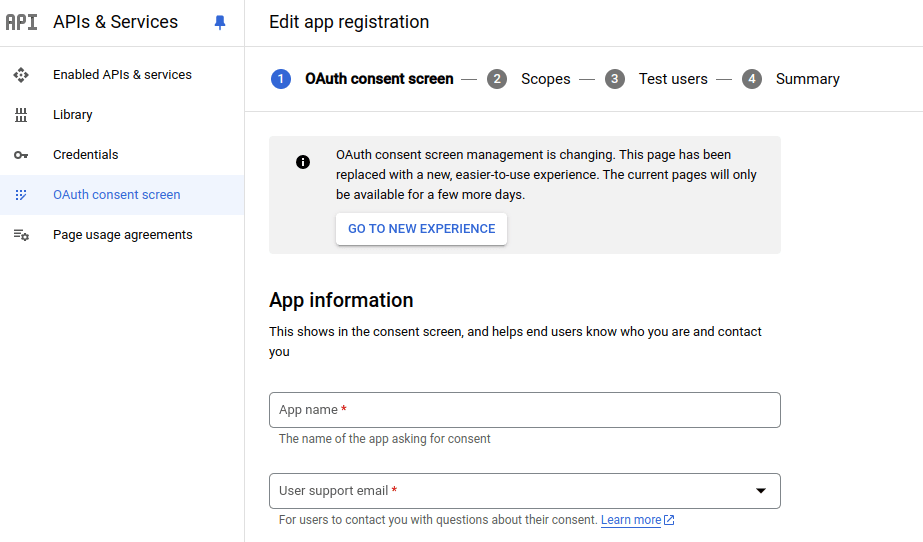
Next, you will go through a series of steps to edit the app registration.
STEP 1: OAuth consent screen
- Fill in the fields in the App information section: app name and user support email.
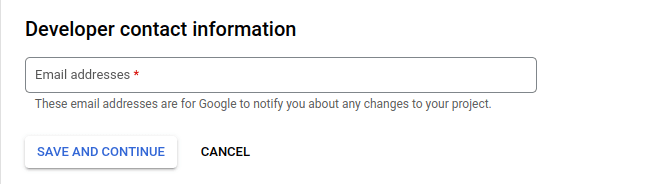
- Scroll down to the Developer contact information section and fill in the field with the email address.
- Click SAVE AND CONTINUE.
STEP 2: Scopes
- Scroll down and click SAVE AND CONTINUE.
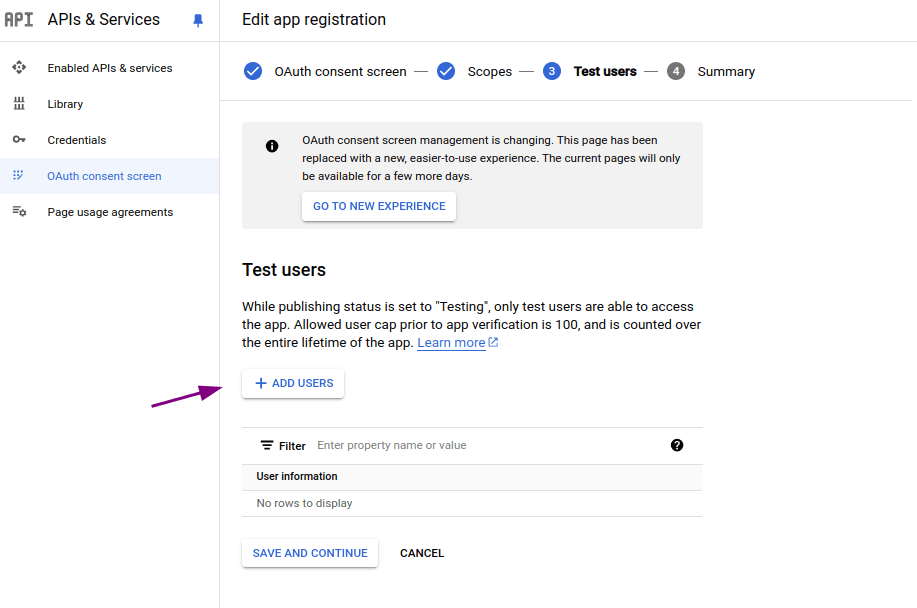
STEP 3: Test users
-
Click ADD USERS.
-
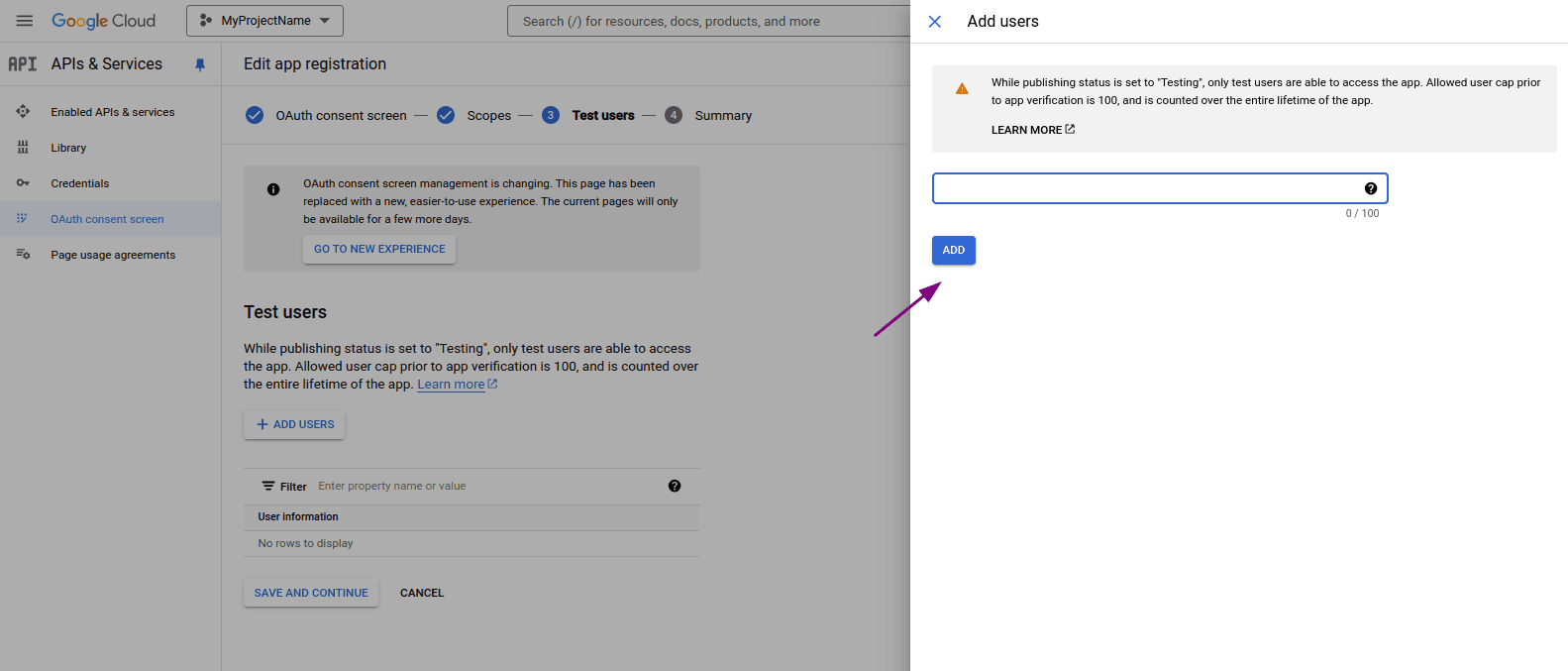
Enter a valid email managed by Google and click ADD.
-
Verify that the user was properly added and click SAVE AND CONTINUE.
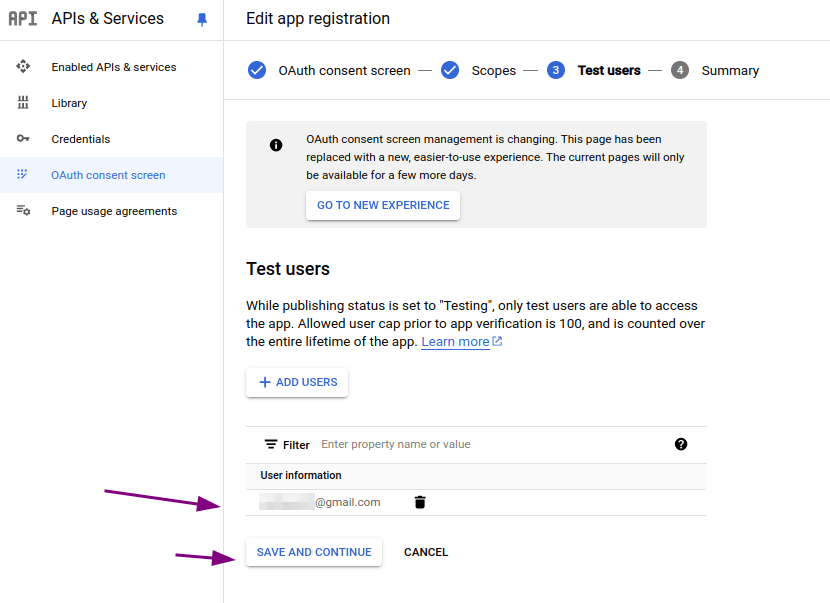 IMPORTANTThis user will be used to access Access Control.
STEP 4: Summary
- Verify that the data is correct.
- Scroll down and click BACK TO DASHBOARD.
In the left menu, access APIs & Services > Credentials.
In the top bar, access CREATE CREDENTIALS and select OAuth client ID.
On the Create OAuth client ID screen, fill in the fields:
- Application type: select Web application.
- Name: enter the OAuth client name.
In the Authorized redirect URIs section, click ADD URI.
Enter the address (callback URL) that you copied in step 3 when creating an integration in Access Control.
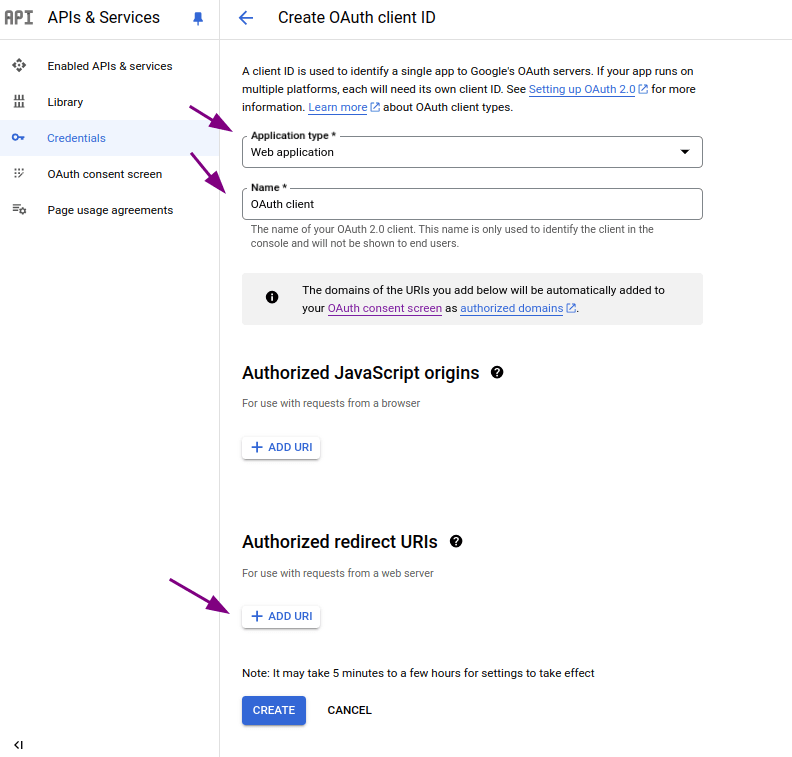
Click CREATE.
Your OAuth client will be created and the Client ID and Client secret will be displayed.
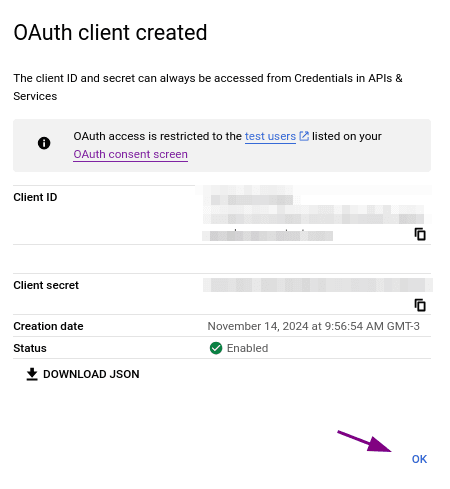
Click OK.
IMPORTANTSave this data, as it will be used in the next step in the Access Control configuration.
Configure the federated login in Access Control
After creating the app in Google Cloud Console, return to Access Control and fill in the fields below with the obtained data:
- Client ID: information obtained in step 15 when creating a client app in Google Cloud Console.
- Client secret: like the Client ID, enter the Client secret, which you obtained in step 15 when creating a client app in Google Cloud Console.
- Role: select the role to be applied with this access.
NOTEIf there are roles configured on your identity provider side, they will prevail over this one.
Disabling or editing a GSuite connection
Once active, the GSuite connection can be updated at any time. To do this, click on any field you want to edit, make the necessary changes and click UPDATE to confirm and update or CANCEL to cancel.
To disable a connection, click the DISCONNECT button.
WARNINGBy clicking the DISCONNECT button, all users of that federated login will have their access disabled. To reestablish the connection, follow the steps above again (Configuring a GSuite connection).
Clicking DISCONNECT does not change your settings with your identity provider.
Login and user control
Unlike what happened with login through the Sensedia Platform, now login with username and password continues to be possible even after configuring GSuite.
A user will be able to log into Sensedia products both through GSuite and separately.