- Home
- Integrations
- Properties and Expression Builder
Properties and Expression Builder
Overview
The Properties  functionality can be accessed from some fields in the configuration forms of specific steps in Diagram type integration flows.
It simplifies data and configuration manipulation in the integration flow, making processes more dynamic and customizable. It allows you to:
-
Select previously registered variables.
-
Select input or output payloads from the following previous steps:
- REST triggers
- REST API connectors
- Technical connectors (databases, cloud providers, and ERP systems)
- JSON Transformation
-
Create custom expressions using the Expression Builder.
Steps with fields configurable via Properties
- Trigger
- Scheduler
- Cron Expression
- Scheduler

- General tools
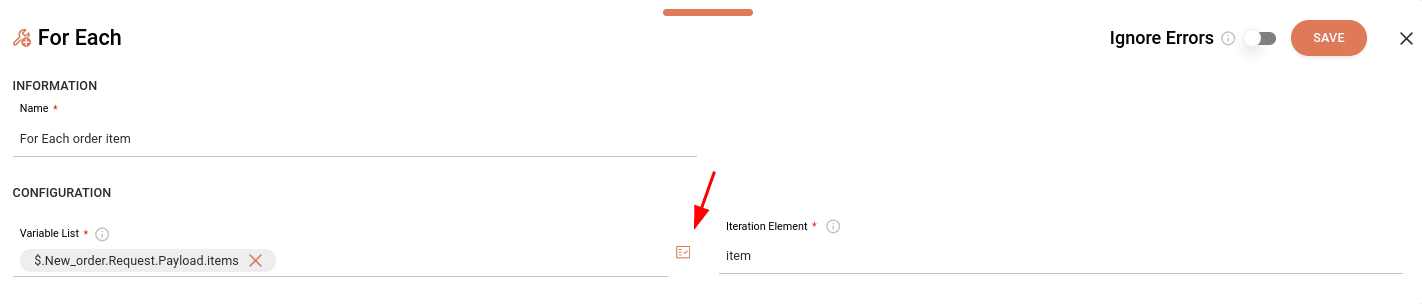
- For Each
- Variable List
- For Each
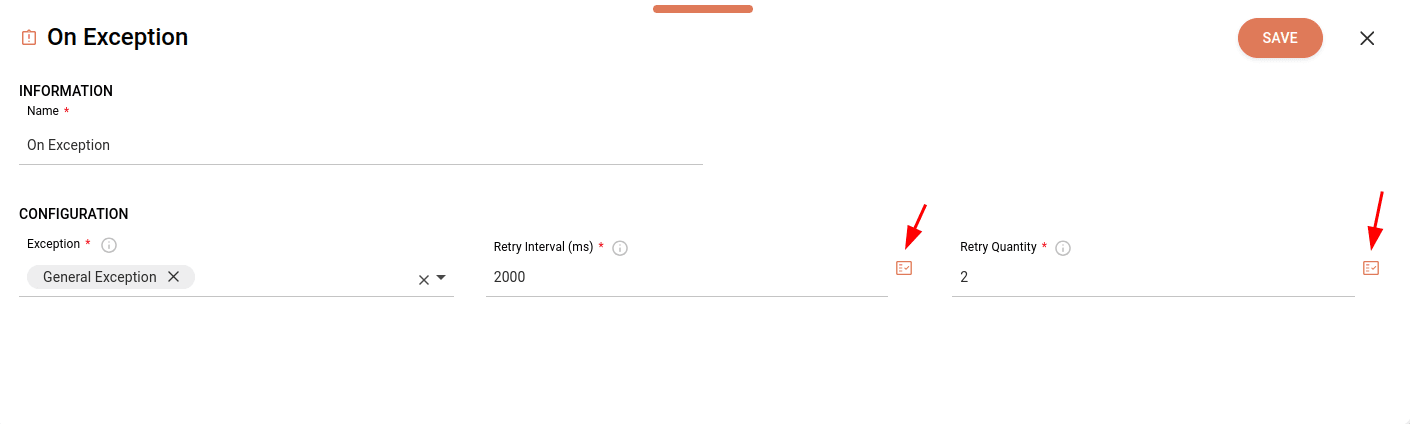
- On Exception
- Retry Interval (ms)
- Retry Quantity
- Connectors
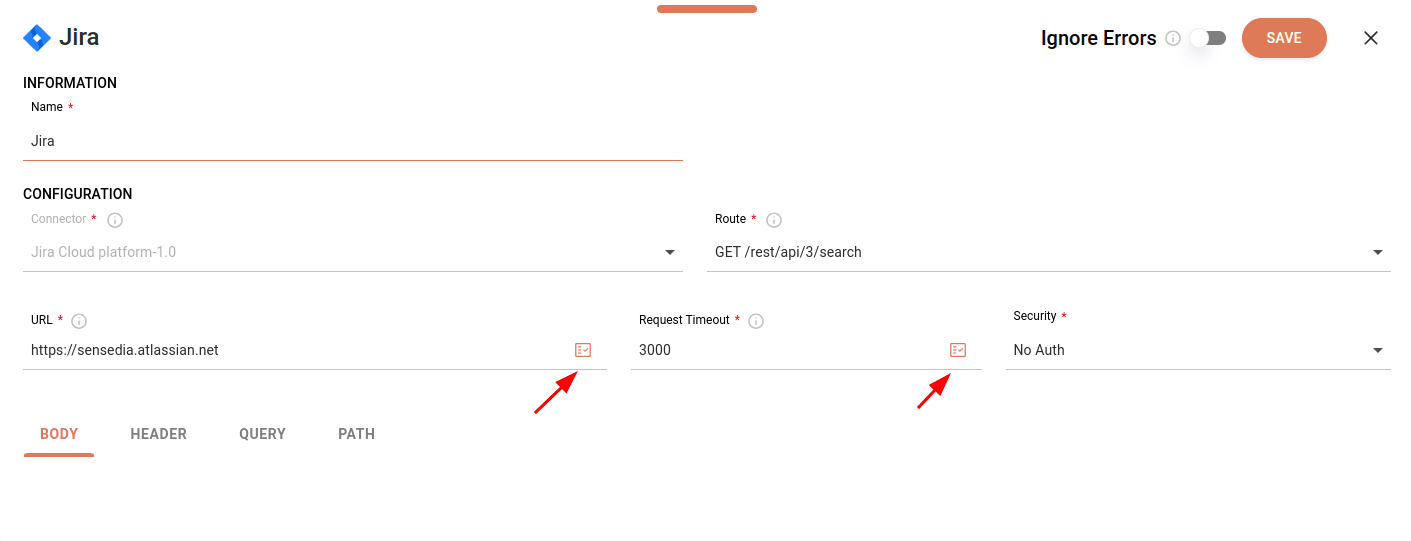
- REST API
- URL
- Request Timeout
- REST API
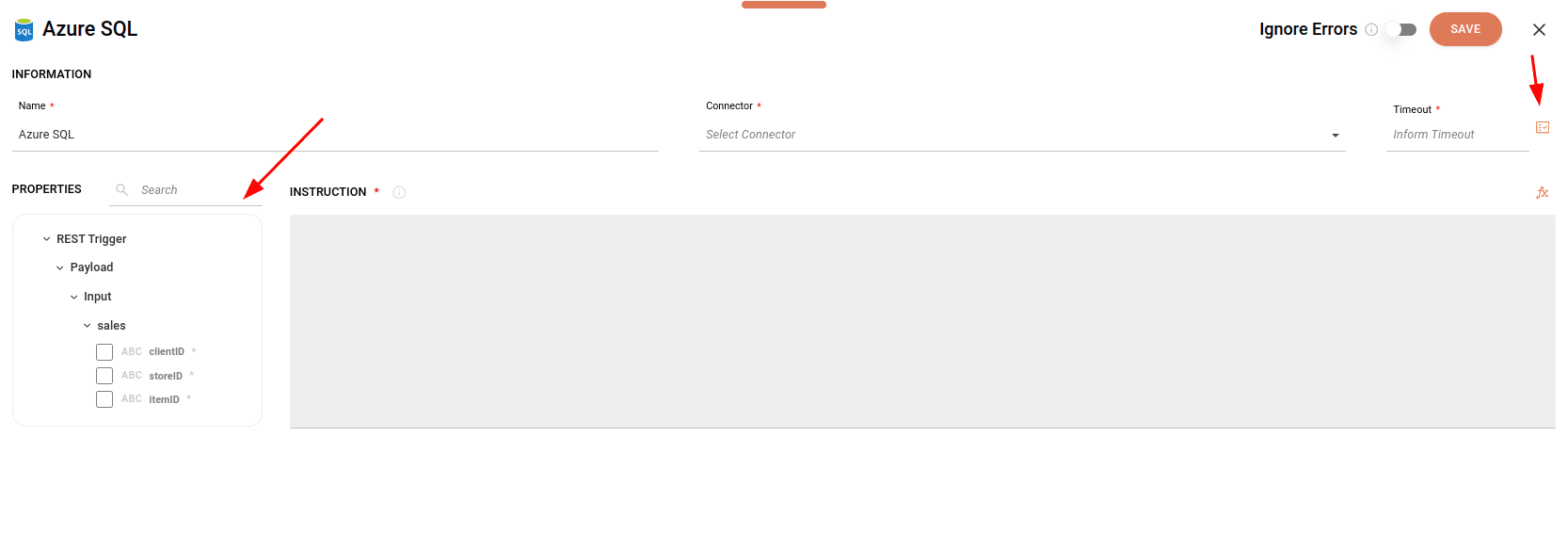
- Technical
- Timeout
- Available in the left panel, next to INSTRUCTION
Selecting variables
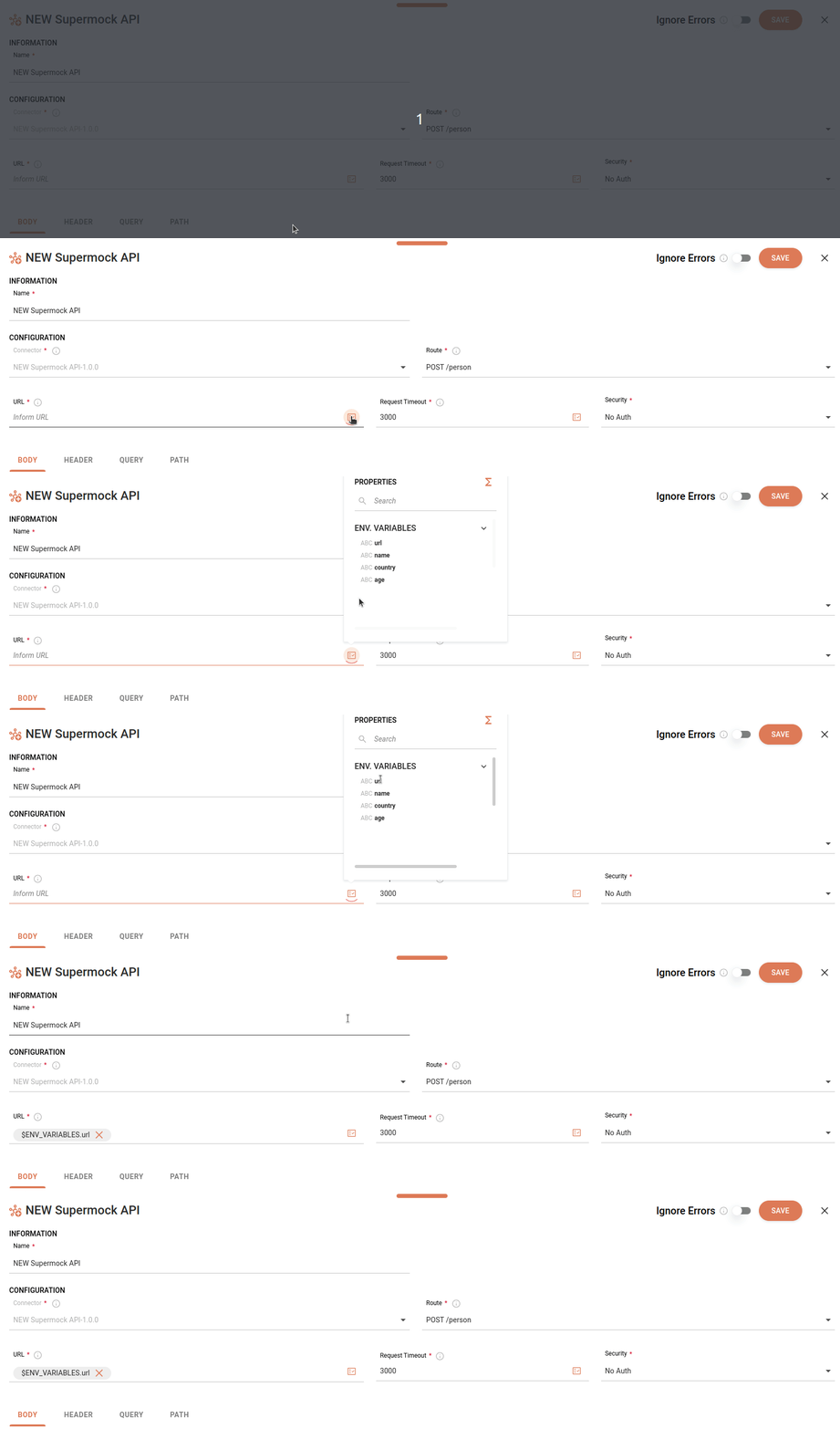
The animation below shows the configuration form of a REST API connector, in which the URL field was filled with a previously registered variable.
NOTESee how to register environment variables.
Selecting payloads from previous steps
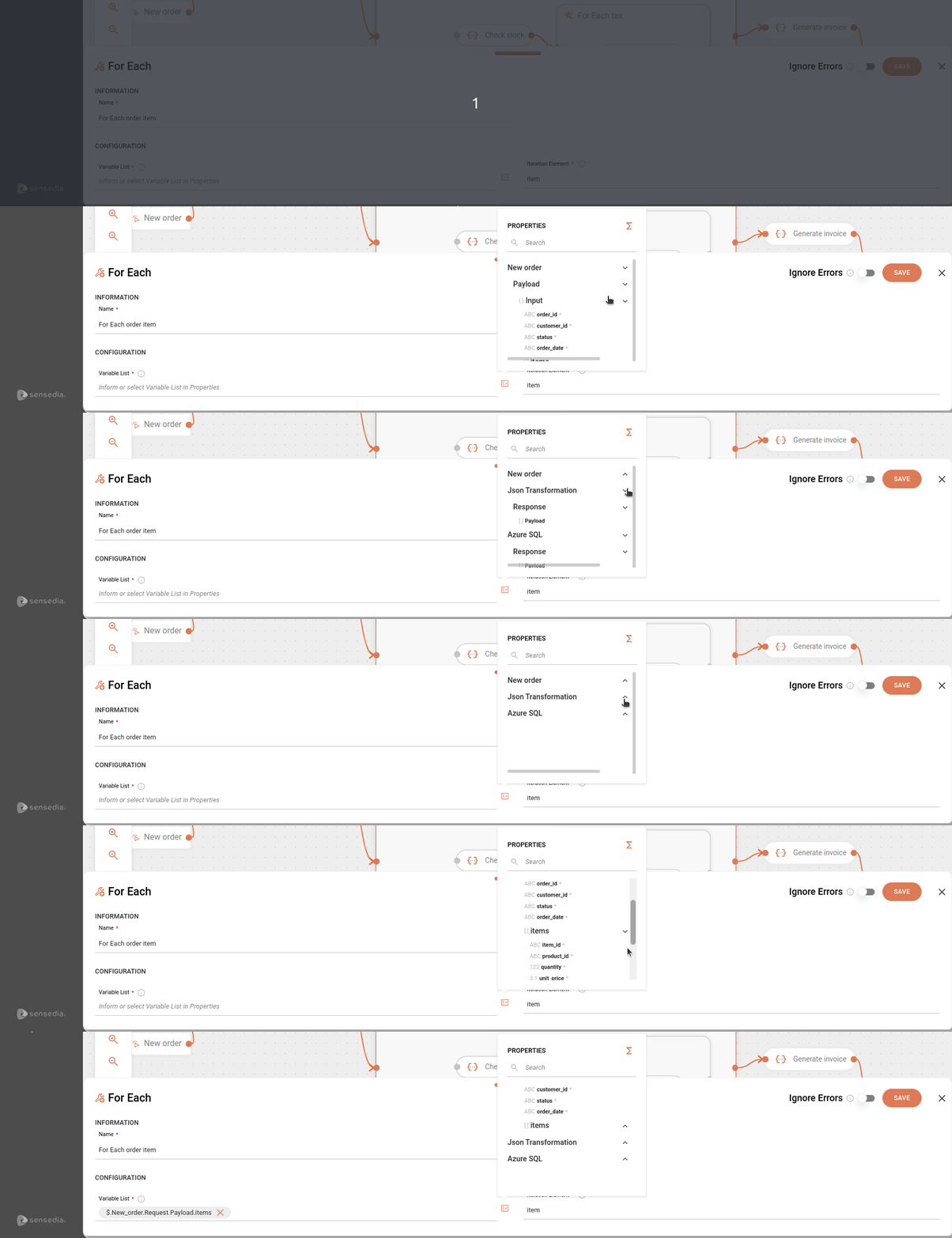
The animation below shows the configuration form of the For Each tool, in which the Variable List field was filled with the output payload from a previous step.
NOTERead more about the For Each tool.
Creating an expression in Expression Builder
When you click the  icon in the upper right corner of the Properties modal, you will see the Expression Builder screen.
This component allows you to create expressions with parameters and variables through functions and conditions available within it. Thus, you can adjust the expression according to your needs.
The image below presents as an example a header from a REST API connector, whose value was configured in the Expression Builder using an environment variable.
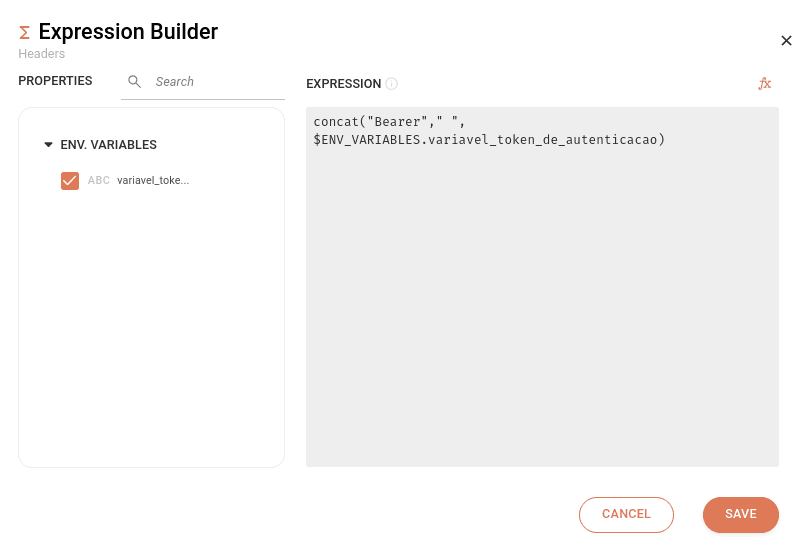
The Expression Builder screen contains the following sections:
- Properties: shows data from previous steps and registered environment variables.
You can filter attributes using the search field at the top of the section and clicking
 .
You can select more than one attribute.
When you select it, the attribute appears in the Expression field.
.
You can select more than one attribute.
When you select it, the attribute appears in the Expression field. - Expression: field to insert input attributes or create an expression by clicking the
 button on the right.
Only the Concat function is available to create the expression.
button on the right.
Only the Concat function is available to create the expression.
IMPORTANTWhen selecting two or more attributes in the Properties field, creating an expression will be mandatory.
NOTESee how to build an expression using the Concat Function.
To save the information, click SAVE. To close the screen without saving changes, click CANCEL.