- Home
- Integrations
- Scheduler
Scheduler
With the Scheduler trigger, you can schedule the integration flow execution for a defined time period.
Next, learn how to add it to the canvas and configure its form.
Add Scheduler to the canvas
Click on the  icon in the left editing menu;
Select Scheduler.
The  Start is replaced by the trigger as soon as you add it to the canvas.
Configure its form.
TIPTo delete the Scheduler from the canvas, select it and click the
button. Deleting the trigger will disable the Test Mode function.
Configuring the form
Select the trigger on the canvas.
Click the edit icon  .
.
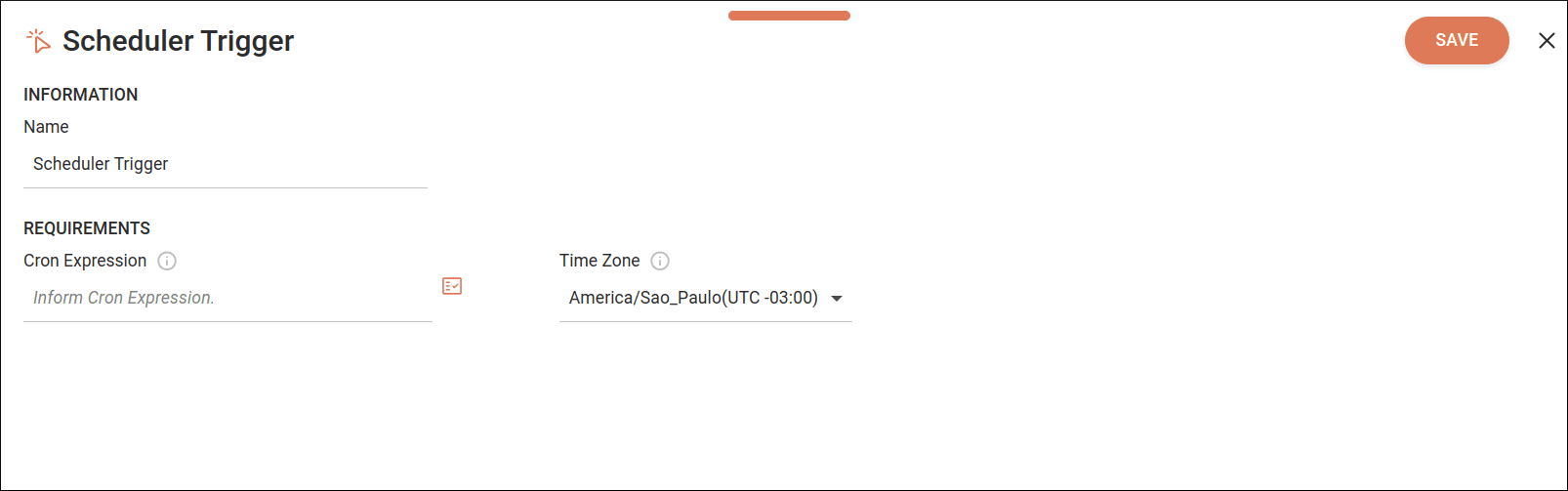
Fill in the following form fields:
- Name: enter the trigger name. The name cannot be used more than once in the same integration flow. By default, the field displays the name Scheduler Trigger.
- Cron Expression: establish a recurrence pattern in the integration flow execution. Understand how a Cron Expression works.
By clicking the Properties icon  on the right, you can:
- Select previously registered variables.
- Select input or output payloads from previous steps.
- Create expressions using the Expression Builder.
NOTERead more about Properties and Expression Builder.
- Time Zone: select the time zone. You can type or filter available options. The default time zone is UTC.
Click SAVE to save changes. To exit the form without saving them, click the X in the upper right corner.
Cron expression
A cron expression is a string that defines a periodic schedule following a specific format.
The Cron Expression field accepts schedules composed of the following fields:
How to configure a cron expression
See below the special characters and values you can use in each field of the cron expression:
Minute
Hour
Day of month
Month
Day of week
TIPTo generate a cron expression, visit Crontab guru.
Examples
See some examples of cron expressions: