- Home
- Integrations
- For Each
For Each
The For Each tool allows you to process each item in a collection, one at a time. This is important for batch operations where multiple items need similar handling.
Automating the processing of multiple items reduces manual intervention, thus increasing efficiency and consistency in data processing.
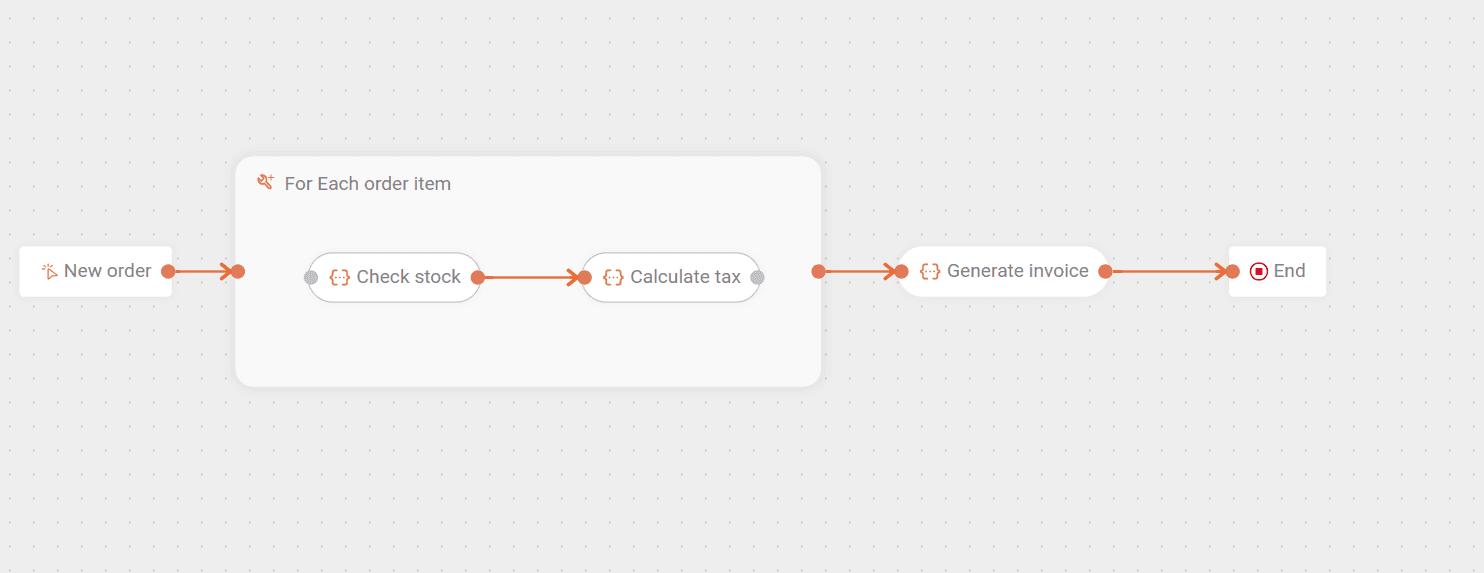
Imagine you have an E-commerce platform that receives customer orders. Each order can have multiple items (products) and, after purchase, each order item needs to be processed individually to perform actions such as checking inventory, calculating taxes, and generating a consolidated invoice, for example.
In this case, you could use a For Each to iterate over the order items and perform a series of actions for each of these items independently.
See what the flow described above would look like:
Next, learn how to add For Each to the canvas and how to configure its form.
Add For Each to the canvas
Click the  icon in the left editing menu.
Select For Each to add it to the canvas.
You can use the search bar  to find it.
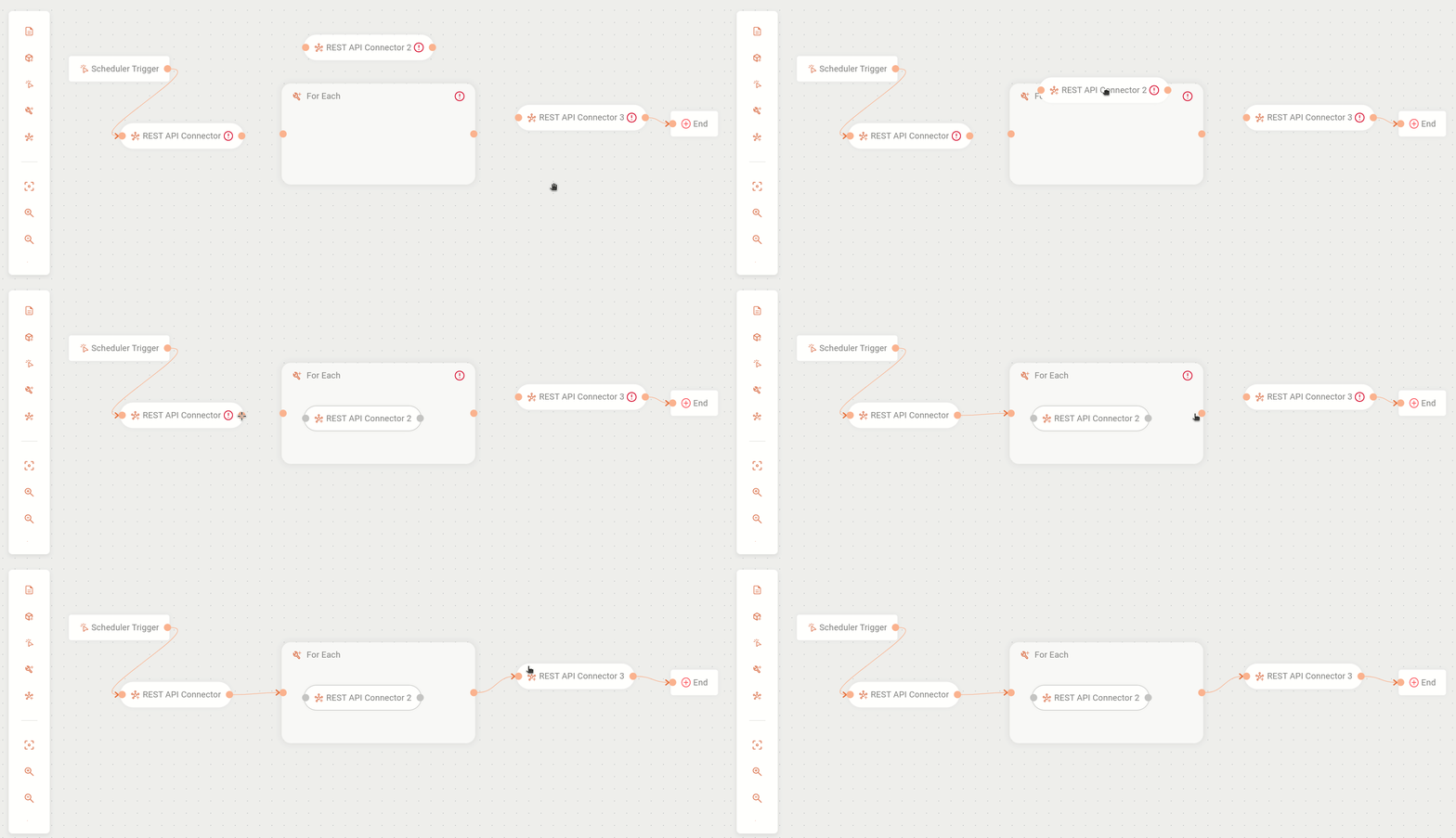
Drag into the For Each box the steps (except trigger) that will be iterated (repeated).
To remove steps from inside For Each without deleting them from the canvas, there are two buttons:
-
Detach: detaches a single step. Select the step you want to detach and click the third button on the right.
-
Ungroup: ungroups all steps and leaves the For Each box empty. Select the For Each box and click the third button on the right.
To delete For Each from the canvas, select it and click the  button.
All steps inside For Each will be deleted and connections will be removed.
button.
All steps inside For Each will be deleted and connections will be removed.
NOTEYou can only have one subflow inside the For Each step, that is, it is not possible to execute parallel subflows inside For Each. If there are inactive steps, you will see a yellow alert icon
on the step, informing that it is inactive and requires a connection to be executed.
The alert icon  on the For Each box only disappears if there is:
- At least one step inside For Each;
- The input connection on the left;
- The output connection on the right.
Configure the form
Select For Each on the canvas.
Click the edit icon  .
.
Fill in the following form fields:
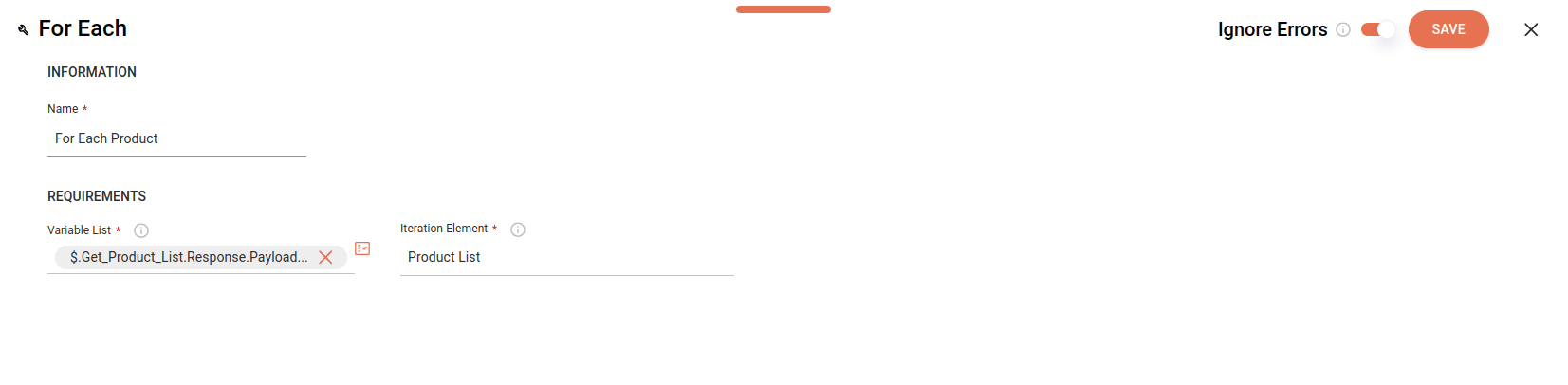
- Name: enter a unique name for For Each. This is an alphanumeric field that allows special characters and empty spaces, with a limit of 20 characters.
- Variable List: enter the list of variables to be executed, that is, the list that contains the items that should be executed individually. Values must be an array (list). This is an alphanumeric field that allows special characters and empty spaces, with a limit of 1024 characters.
By clicking the Properties icon  on the right, you can:
- Select previously registered variables.
- Select input or output payloads from previous steps.
- Create expressions using the Expression Builder.
NOTERead more about Properties and Expression Builder.
Below, we demonstrate the selection of a list (array) of items (from Properties ) that will be processed by the For Each tool.

- Iteration Element: name of the structure that identifies the elements that will be repeated inside For Each. This is an alphanumeric field that allows special characters and empty spaces, with a limit of 250 characters.
TIPYou can view the name of the element to be iterated in Properties or in the Data Mapping (FROM/TO) of steps that are inside For Each.
NOTEThe number of iterations is determined by the number of items in the array (list).
Configure the Ignore Errors button: by default, the button is disabled and you can enable it.
Enabled  | Disabled  |
|---|---|
| Execution continues, even if there are errors in the process. | Execution will be stopped immediately. |
| Logs show the step with error. | Logs show execution up to the last iteration. |
| Steps after For Each will be executed. | No step after For Each will be executed. |
Click SAVE.
NOTESee an example of integration with CRM and For Each.
For Each inside another For Each
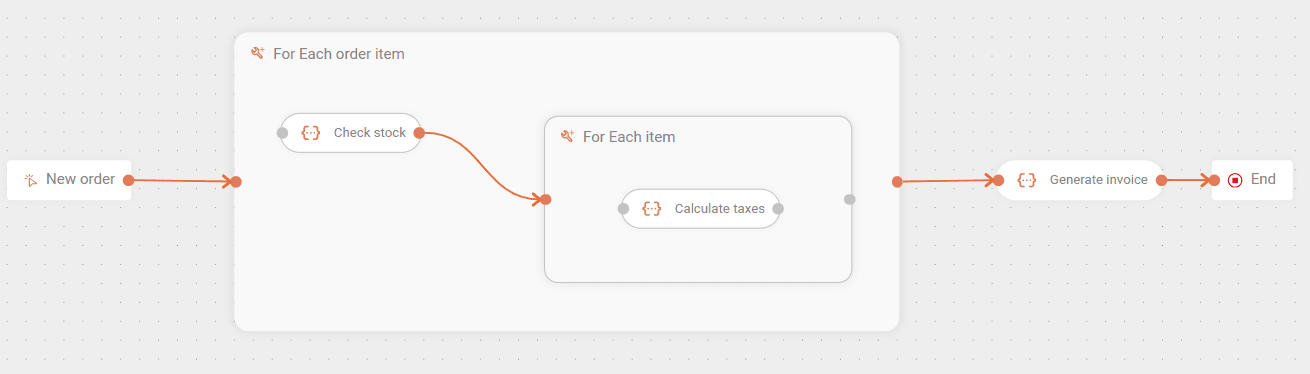
You can insert a For Each inside another For Each. This way, your integration flow will process data in structures with nested loops.
Consider the previous example of a flow with an order that contains multiple items (products). Imagine that each item is subject to the payment of two taxes.
- The outer For Each iterates over the list of items.
- The inner For Each iterates over the list of taxes for each item.
This way we have a list (array) inside another list:
New order:
Item 1
- Tax 1
- Tax 2
Item 2
- Tax 1
- Tax 2
Item 3
Item 4
The described flow would look like this:
NOTETo move a step between two For Each boxes, you must detach it from the initial For Each. To do this, click X and drag it to the new For Each.
Ignoring errors
When a flow has a For Each inside a For Each, the following rules apply to the Ignore Errors button: