- Home
- Flexible Actions
- Platform Events
Platform Events
The Platform Events screen displays the list of alerts configured from monitoring events in the Sensedia API Platform and allows you to configure new alerts.
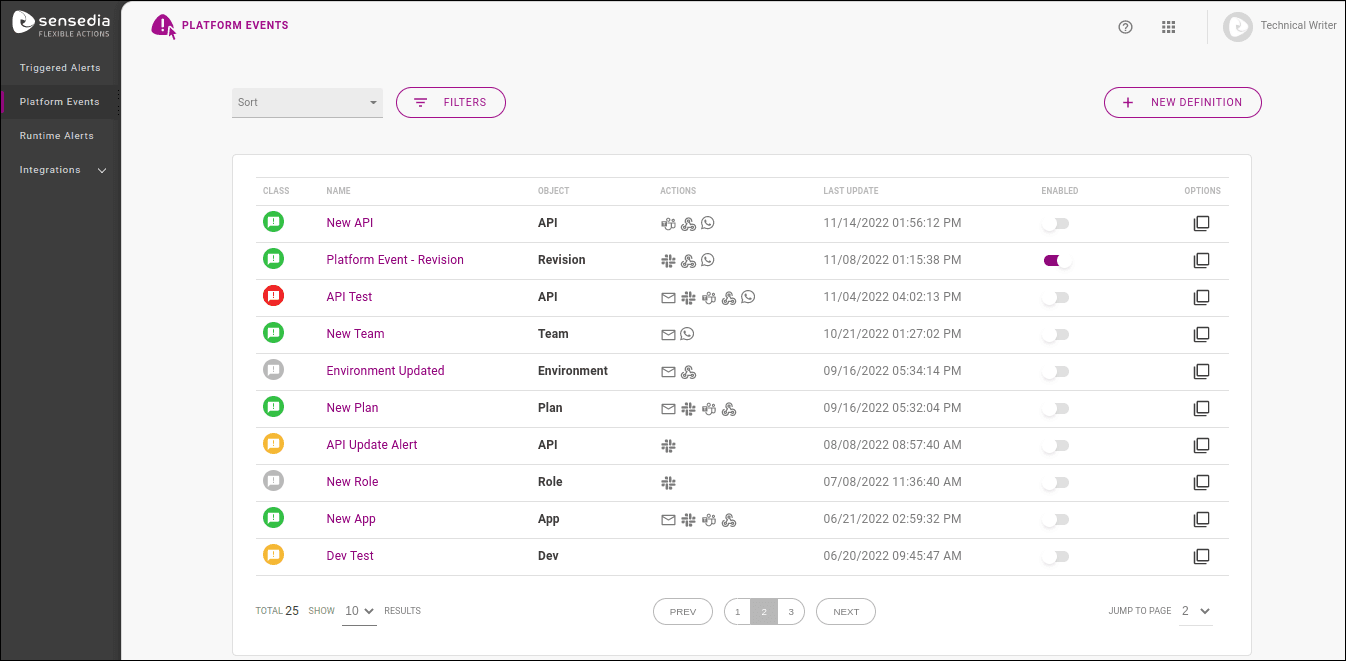
The events that can be monitored are changes (creation, update, deletion) in API Platform objects. See below for the types of objects and changes that can be monitored.
TIPSee more about creating new alerts on the next page.
Alert list
The alert list provides information in the following columns:
- CLASS, which displays the classification of each alert via an icon.
- NAME, with the alert name.
- OBJECT, indicating the Platform object being monitored.
- ACTIONS, including icons representing the channels used to send the notification.
- LAST UPDATE, showing the date and time of the last configuration update.
- ENABLED, with a button to easily enable or disable notifications for the alert.
- OPTIONS, with the
 icon to clone the alert.
The list can be sorted in ascending or descending order by last update date using the Sort field.
By clicking the FILTERS button, you can filter existing alerts by the following fields:
- Classification: that is, the level of criticality, which can be Neutral, Success, Warning, or Critical.
- Object: object that was changed.
- Action: notification action configured to occur when an alert is triggered: E-mail, Slack, Microsoft Teams, or Webhook.
- Status: state, which can be enabled or disabled.
- Tags: optional tags added to alerts during their creation or editing to categorize them.

Filter fields to easily find alerts
Enabling and disabling alerts
Newly created alerts have their notifications enabled by default. However, you can quickly disable or enable a notification using the ENABLED column in the configured alerts list. Enabled notifications will have colored icons, while disabled ones will have gray icons:
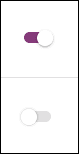
Alerts with notifications disabled will still appear in the configured alerts list and can be enabled again.
Cloning alerts
To make it easier to create alerts, you can clone any already configured alert (whether notifications are enabled or not) by clicking the icon in the OPTIONS column of the Platform Events list.
You will be taken to the new alert configuration screen, where all fields will be filled with the information from the cloned alert.
To make identification easier, the clone's name will have the suffix "- Copy", but you can edit it, as well as modify any other fields you want, before saving the new alert.
NOTEThe new alert will be created as if the flow had started from scratch. This means the alert recipient must authorize the subscription via confirmation email, even if they are the same recipient as the cloned alert.
Read more about recipient confirmation.
Alert overview
By clicking on an alert in the Platform Events list, you are taken to the alert overview page, which displays the default message sent when an alert is triggered:
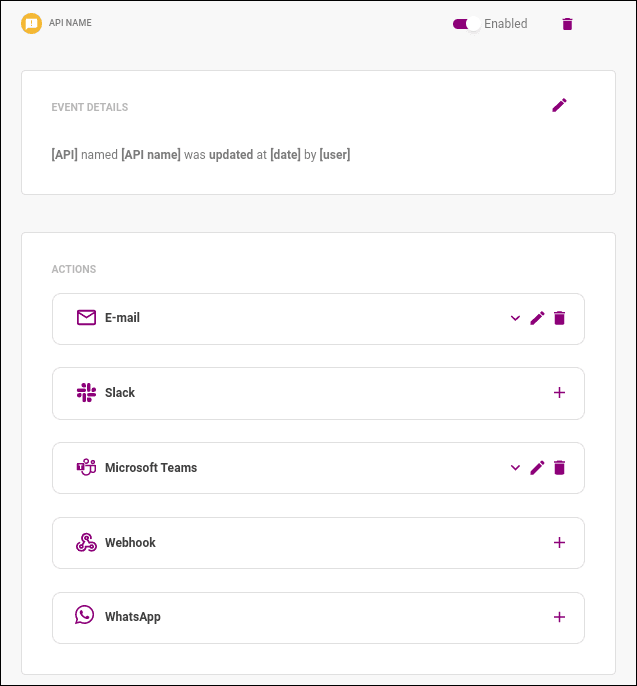
Here, you can edit the event parameters that will trigger the alert by clicking the edit icon  , delete the alert using the
  icon, and enable/disable the alert using the Enabled button.
Additionally, the screen also displays the ACTIONS panel, which contains the notification channels configured for the alert, with details ( ), the option to add an action (
 ), edit it (), or delete it ().
For the E-mail action, you can see the registered recipients and the custom message (if included).
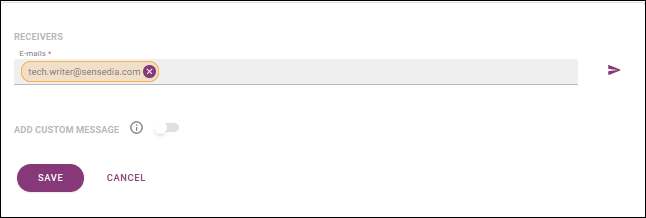
If a recipient has not authorized receiving notifications, you can resend a confirmation email.
To do this, click in E-mail and, on the edit screen, click  :
:
Editing alerts
To edit the basic information of an alert (that is, monitoring conditions that will trigger a notification), go to the alert's overview page by clicking on the alert in the Platform Events list.
Then, click the edit icon .
You will be taken to a page similar to the alert configuration page and can make any changes you want.
The only information that cannot be changed is the monitored object.
In this case, you can delete the alert and create a new one for the desired object.
WARNINGIf an alert's tags are edited, you can use the new tags immediately for searches on the Platform Events screen, but for searches on the Triggered Alerts screen, the tags that were active when the alert was triggered are valid. If you have just added a new tag, for example, it will only return search results in Triggered Alerts the next time the edited alert is triggered.
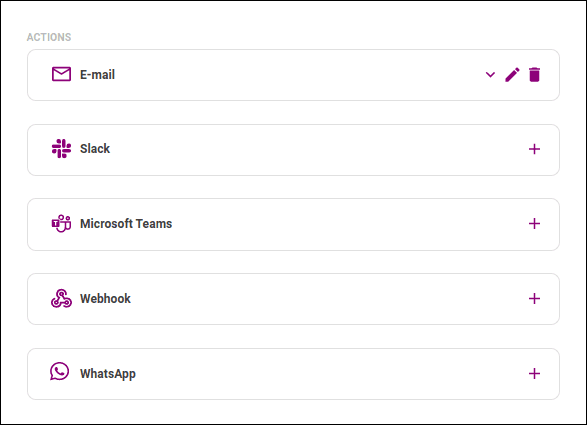
To edit the actions taken when an alert is triggered (that is, the means used to send notifications), interact with the items in the Actions panel, as in the example below:
- Already configured actions can be edited using the
 icon.
icon. - Actions not yet configured can be added using the icon.
- Actions can be deleted using the icon.
NOTEEvery alert must contain at least one notification action. Therefore, if there is only one action configured, there will be no delete icon for it:
Deleting alerts
To delete an alert, go to the alert's overview page by clicking on the alert in the Platform Events list.
Then, click the  icon.
icon.
TIPWhen you delete an alert, it is removed from the list of existing alerts. If you just want to disable notifications for an alert indefinitely, you can use the enable/disable buttons in the ENABLED column of the Platform Events page. A disabled alert will remain in the registered list and can be enabled again at any time.
Monitored events
The table below shows the Platform objects and monitorable changes - creation (created), update (updated), and deletion (deleted).
The changes form the selectable options when an alert is created.