- Home
- Flexible Actions
- Runtime Alerts
Runtime Alerts
Runtime Alerts allow monitoring the behavior of APIs.
You can configure alert triggers (sending messages by email, Slack, Microsoft Teams, Webhook, and/or WhatsApp) for the situation (event) you determine.
See below for some example benefits of this feature.
Example Scenarios

Now the SRE (Site Reliability Engineering) team receives WhatsApp messages when a problem occurs and can take prompt action. I configured runtime alerts based on status 500 responses and set exactly the message to be sent for each situation, pointing out possible solutions to speed up response. Additionally, POST requests are sent to the system that creates reports for analysis and management planning.

My reconfiguration strategy included a testing period. I created some new APIs to observe their market acceptance. I configured runtime alerts to monitor the number of calls received for these APIs. By knowing the adoption rate of each during the testing period, I had the basis to define the best path forward for my sales expansion project.
In these and other scenarios, alerts work based on action policies. Each policy defines a specific scenario (event) with the rules for triggering the alert.
Configuring Runtime Alerts
Configure policies to monitor API behavior and receive alerts when specific situations occur.
Previous versions of Flexible Actions required creating one alert per API.
Now, with the concept of policies, the process is much simpler: you create a Runtime alert policy and select the APIs you want to associate with the policy.
TIPClick this link to understand how monitoring policies work.
Step by step
Detailed description
Detailed description
Policy listing
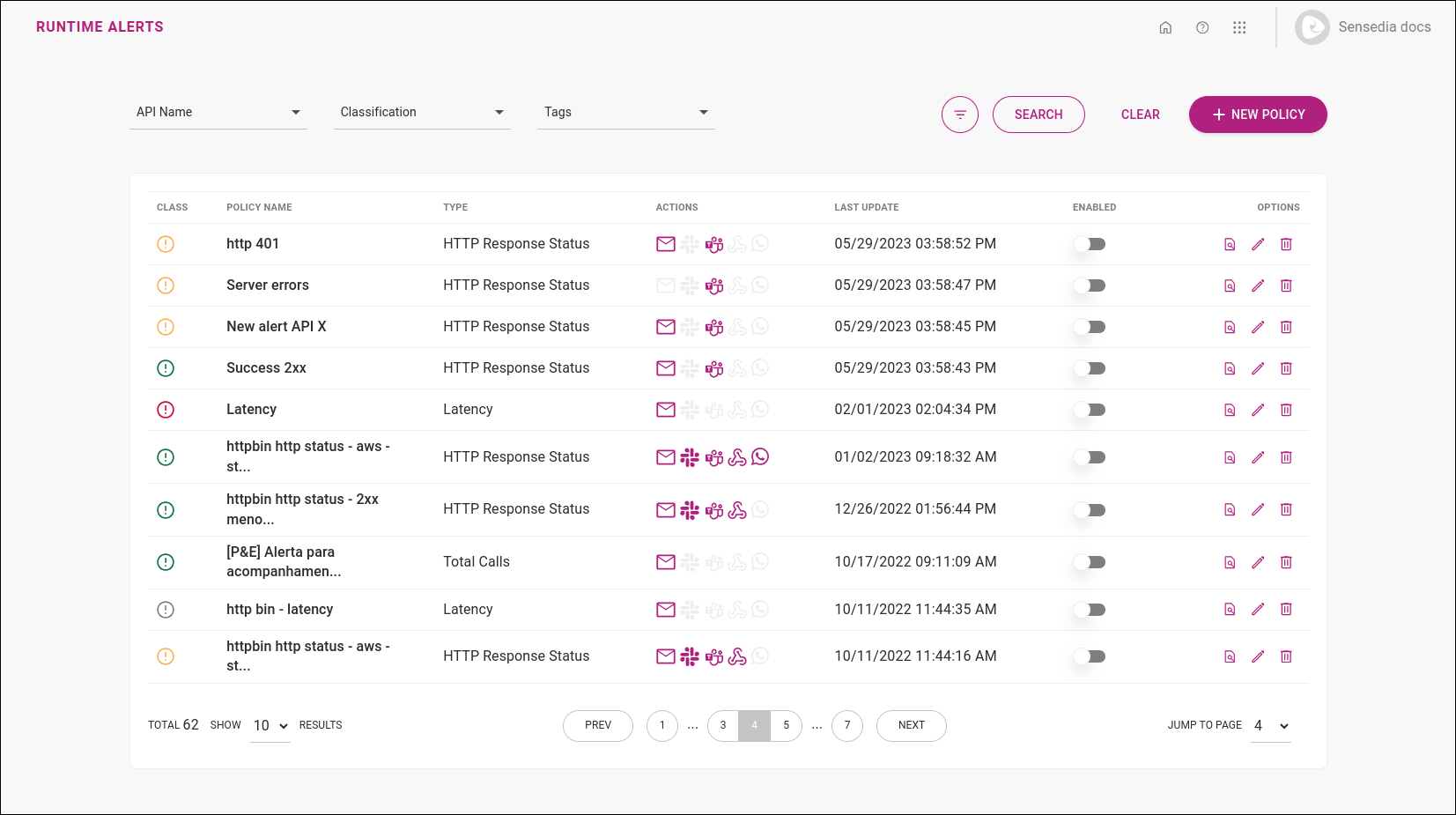
The policy list displays information and action options in the following columns:
-
CLASS, with the policy classification, indicating its level of criticality:
 Neutral
 Success
 Warning
 Critical
-
NAME, with the name given to the policy.
NOTEThe policy name is unique.
-
TYPE, which informs the category of parameters to be monitored, which can be:
- Total Calls
- Availability
- Latency
- HTTP Response Status
-
ACTIONS, displaying the icons representing the notification channels:
 Email
Email Slack
Slack Teams
Teams Webhook
 WhatsApp
-
LAST UPDATE, showing the date and time of the last configuration update.
-
ENABLED, which brings a button to enable and disable notifications for the policy.
-
OPTIONS, offering action options:
 : opens the page with more policy details:
- Event parameters that trigger the alert.
- Monitored items (API name; number of environments, resources, and operations; total monitored items).
- Notification channels, including recipients, configured message, and, depending on the channel, a button to send a test message.
 : starts steps to edit the policy.
 : deletes the policy.
Search
Find a policy using the search tool at the top of the screen.
You can filter policies by the fields described below.
To see all fields, click  .
.

TIPYou asked and we delivered: now you can search by API name and policy name (alert name).
- API Name: start typing the API name or click the field to select from a list.
- Classification: click and choose a criticality level (Neutral, Success, Warning, or Critical).
- Tags: start typing or select a tag (optional label added to policies during creation or editing to categorize them).
- Status: select a state (enabled or disabled).
- Policy name: type the policy name.
- Notification Type: select a notification type (Total Calls, Availability, Latency, or HTTP Response Status).
- Action: select the notification channel (Email, Slack, Microsoft Teams, Webhook, or WhatsApp).
Policy details
Click in the Runtime alert policy list to see details about the policy, which are the information registered during the new policy registration process.
The screen displays:
- Policy name
- Monitored event details
- Monitored Items
- Notification channels (Actions), including recipients, configured message, and, depending on the channel, a button to send a test message.
Editing policies
To edit the basic information of an alert (i.e., the monitoring conditions that will trigger a notification), follow the steps below.
In the Runtime alert policy list, click in the OPTIONS column of the policy you want to edit.
Make the desired changes. The steps are the same as for creating new policies. The notification type (Total Calls, Availability, Latency, or HTTP Response Status) cannot be changed.
TIPIf you want to change the notification type, you can delete the policy and create a new one with the desired type.
In step 4 REVIEW, check the changes and click SAVE to finish.
WARNINGYou must click SAVE for the changes to take effect
NOTE
- Changes will only apply from the next alert trigger.
- When you edit the tags of an alert, the new tags can be immediately used for searches on the Runtime Alerts screen. However, in searches on the Triggered Alerts screen, the tags that were active when the alert was triggered will still be considered. For example, if you just added a new tag, it will only return search results in Triggered Alerts the next time the edited alert is triggered.
Removing policies
Follow the steps below to delete an alert:
In the Runtime alert policy list, click  in the OPTIONS column of the policy you want to delete.
Confirm deletion by clicking DELETE in the confirmation window.
TIPIf you just want to disable notifications for an alert indefinitely, instead of removing the policy, you can use the enable/disable buttons in the ENABLED column of the Runtime Alerts page.