- Home
- Flexible Actions
- Slack
Slack
The SLACK tab (Integrations > SLACK) lists the Slack workspaces integrated with Flexible Actions and allows you to add new workspaces.
Through this integration, Flexible Actions finds the Slack channels that should receive notifications when an alert is triggered.
The user can choose to send notifications via Slack in the ACTIONS step when creating or editing an alert (both in Platform Events and in Runtime Alerts). Channels are also selected during alert creation/editing.
TIPSee the Slack documentation for information on how to create and manage workspaces.
Workspace list
The tab lists all workspaces integrated with Flexible Actions, sorted by last modified date:
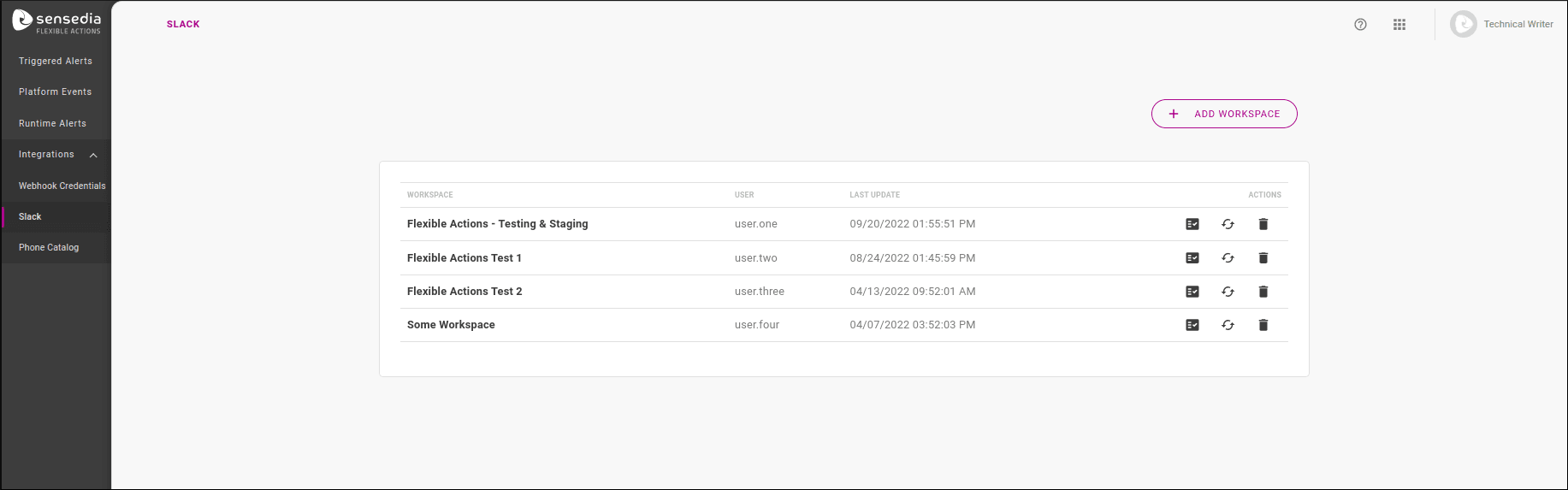
The listing table displays the workspace name, the user who added it, and the last modified date. In addition, the OPTIONS column has three icons:
 — to test the connection with the workspace.
A message will appear in the upper right corner of the screen, indicating whether the test was successful or not.
— to test the connection with the workspace.
A message will appear in the upper right corner of the screen, indicating whether the test was successful or not. — to reconnect with the workspace if there is an integration issue, without needing to remove and re-add it.
 — to delete the workspace (see more about this in the Workspace removal section).
Adding workspaces
To add a new workspace, click + ADD WORKSPACE in the upper right corner of the screen. A modal window for granting access permission will open:
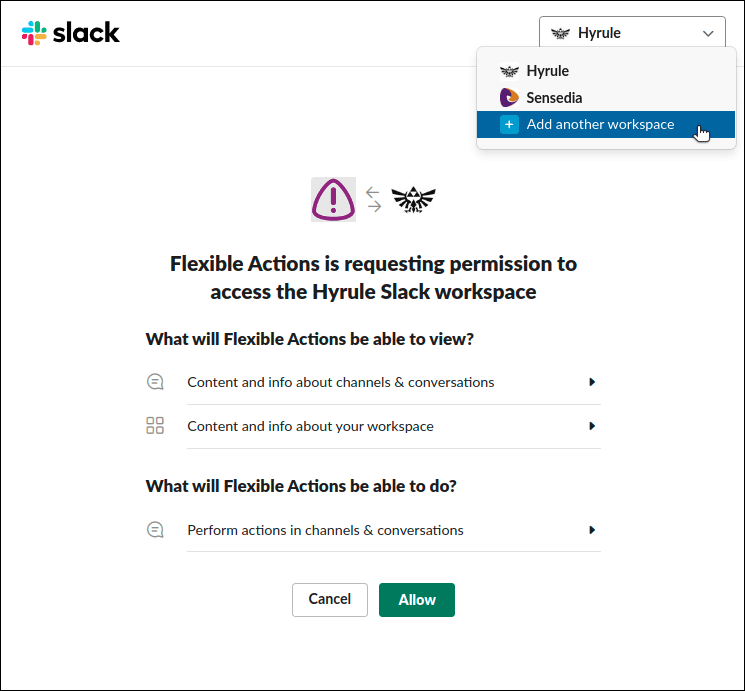
Loaded workspaces will appear in the selection field at the top right of the window. You can add another workspace by clicking Add another workspace. After agreeing to the connection (by clicking the Allow button), the new workspace will appear in the list of integrated workspaces.
You can now choose this workspace as a notification method, which should be done during the alert creation/editing process (when you also specify the channels to which notifications should be sent).
Deleting workspaces
To remove the integration with a workspace, click the  icon in the OPTIONS column of the workspace list.
It is possible to delete a workspace that is in use in an alert. When this happens, the Slack option will still appear as an alert action, but with empty configuration (that is, no channel will be selected for notifications).
Sending notifications for private channels
The selection of which Slack channels will receive notifications is made during the alert creation/editing process. After choosing the workspace, the workspace channels are loaded for selection.
By default, only public channels are loaded, but you can also enable the selection of private channels.
This is done in Slack:
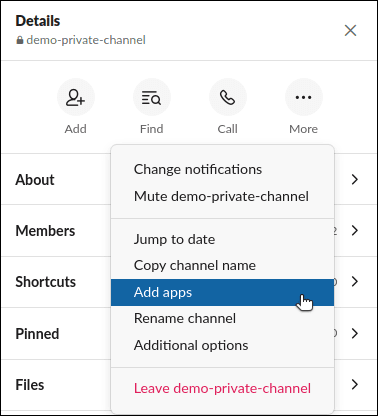
Go to the private channel and click the  icon to open the channel details window.
Click ... More and then Add apps:
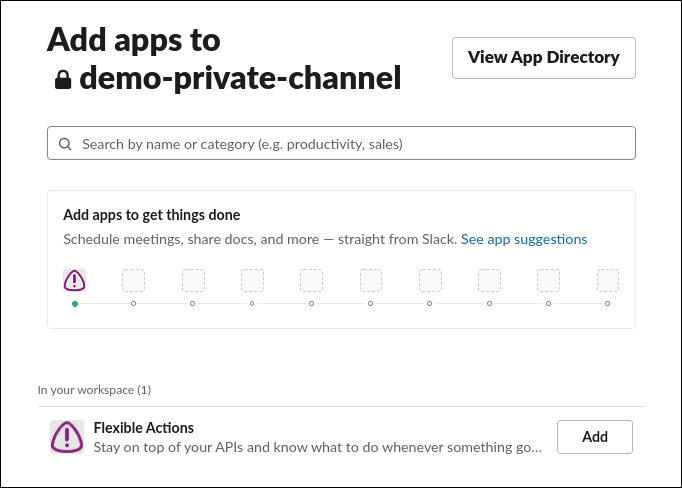
Find Flexible Actions in the list of available apps in your workspace and click Add:
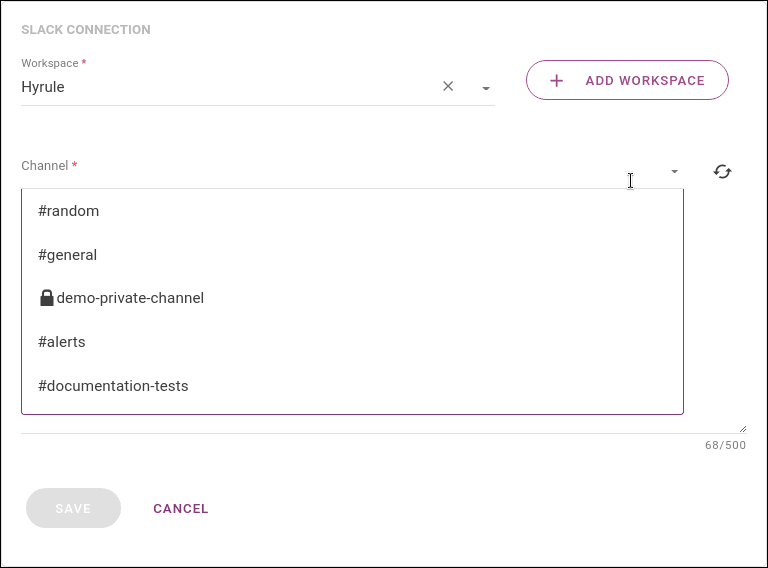
In the alert creation or editing process, when configuring the Slack action, update the channel list using the icon next to the Channel field:
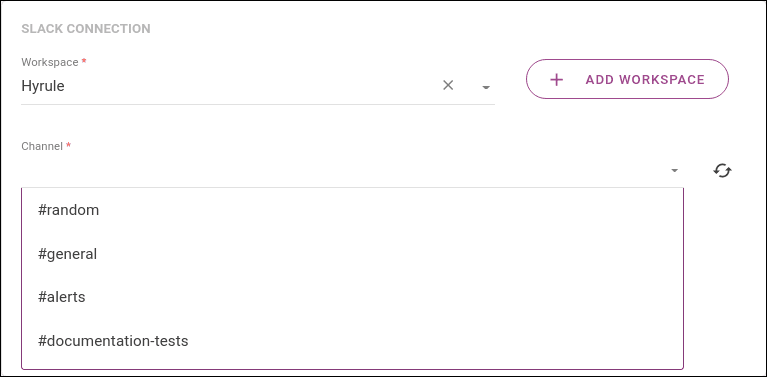
Done! Now the private channel will appear in the channel list and can be selected: