- Home
- Integrations
- Database Connectors
Database Connectors
- Azure SQL
- ctreeACE-db 10.1
- DB2
- Firebird 4.1.0.0
- MongoDB
- MySQL 8.0.16
- Oracle 11g
- Oracle 12 c
- Oracle 19c
- PostgreSQL 9.4
- Progress
- SQL Server 7.2
- SQL Server 2022
Creating and editing a connector
To create a connector, follow the steps below:
Access the Connector Manager screen from the left menu of the product or by clicking the card on the Welcome screen.
Click + NEW CONNECTOR in the upper right corner of the screen.
Select the connector card you want to create.
A new screen, Connector Configuration, will open. Fill in the following data in the connector form:
In Name, give the connector a name.
In Version, enter its version.
In Description (optional), add a description.
Select the environment in which you will deploy the connector.
Fill in the values for the required fields (fields vary by connector).
NOTEFor optional fields that are not filled in, the default value will be applied.
Click CREATE.
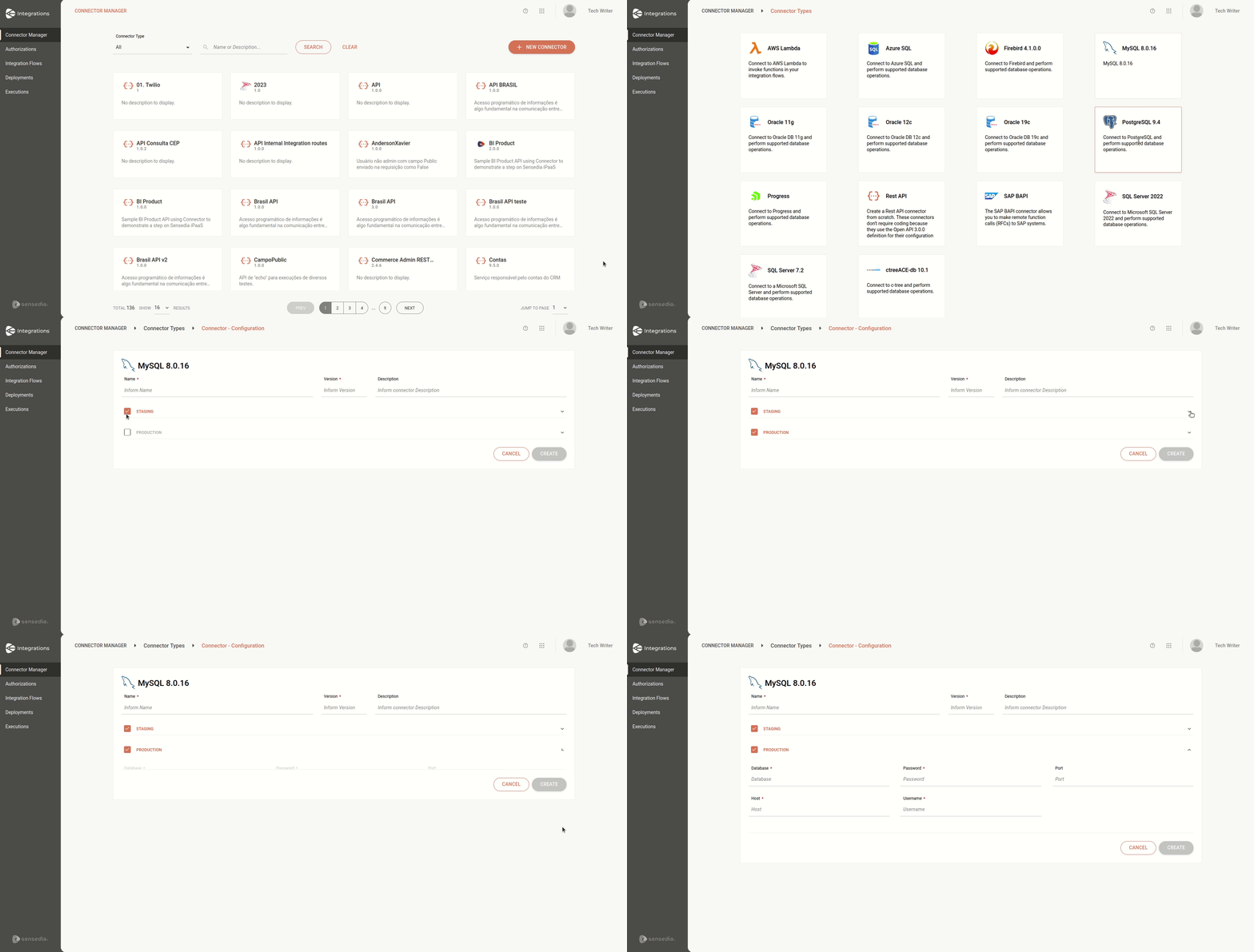
NOTEIf you select both environments, you must fill in the complete data for both to be able to create the connector.
To edit the connector, follow the steps below:
Click on the connector you want to edit.
You can change:
- The description in the Description field.
- The environment selected for deployment: staging or production (there must be at least one environment enabled).
- The information in the selected environment form, even if the connector is in use in any integration flow.
When you finish your edits, click SAVE.
IMPORTANTYou cannot delete a connector while it is in use in any integration.
Configuring a connector
After creating the connector, you must configure it on the Flow screen. To do this, follow the steps below:
Adding the connector to the canvas
Access the Integration Flows screen and select your integration flow.
If you want to create a new flow, click + NEW FLOW and access the Flow screen.
NOTECheck out our tutorial on how to create your first integration flow.
Click the  icon in the left editing menu.
Choose the connector you want. You can use the search bar to find it.
Connect it to a previous step if you want to use the properties of other steps.
TIPTo copy the step, click the
button. If the step form is already configured, the settings are copied as well.
To remove the connector from the canvas, select it and click the  button.
Configuring the form
Select the connector on the canvas.
Click the edit icon  .
.
Fill in the following form fields:
-
Name: enter the connector name.
-
Connector: select one of the registered connectors.
-
Timeout: enter the request timeout in milliseconds.
By default, the value will be 3000 milliseconds and the maximum value is 60000 ms.
NOTEBy clicking the
 icon to the right of the Timeout field, you can filter and display environment variables and the payload of previous steps (if the steps are connected) for use in timeout configuration.
 -
Properties: use environment variables and properties from previous steps to build your script in Instruction.
-
Instruction: create your script by inserting input attributes or creating an expression by clicking the
 button to the right.
The Concat function is available for creating the expression.
This field comprises the native syntax of the protocol to which the connector provides access.
button to the right.
The Concat function is available for creating the expression.
This field comprises the native syntax of the protocol to which the connector provides access. -
Ignore Errors: by default, this button is disabled and you can enable it.
Check out more details about the Ignore Errors function in the table below:
Enabled Disabled
Flow execution continues, even if there are errors in the process. Execution will be stopped immediately. Logs show the step with error. Logs show execution up to the step with error. Following steps will be executed. No following steps will be executed.
Click SAVE.
See an example of MySQL connector configuration in the video below:
NOTERead more about how to build SQL instructions.