- Home
- Integrations
- 2024 Release Notes - Integrations
2024 Release Notes - Integrations
December 2024
New Feature
-
Access management by permissions
It is now possible to manage access to Sensedia Integrations functionalities through permissions in Access Control. This provides greater control over the actions that can be performed in the product.
Check out more details about Sensedia Integrations permissions in the Access Control documentation.
New Features
-
Viewing output payload (response) of technical connectors and JSON Transformation in the Properties functionality in the For Each, On Exception, and technical connectors configuration forms
Now when configuring the For Each tool, it will be possible to view the output payload (response) of technical connectors and JSON Transformation by clicking on Properties, facilitating the completion of the Variable List field. This view will also be available in the configuration forms of technical connectors and the On Exception tool, within Properties.
-
Editing simple parameters of Source integration flow EIPs from the diagram
You can now edit simple parameters of Source integration flow EIPs from the diagram. Just select the EIP in the diagram and click Edit to open the editing form.
Improvement
-
Display of a yellow warning icon in inactive steps inside For Each in a Diagram-type flow
Now if a step inside a For Each is inactive in the flow due to lack of connections, it will display a yellow warning icon.
November 2024
Fix
- We fixed an error that occurred when trying to import a valid OpenAPI 3.0.0 file to create a REST API connector.
Fix
- We fixed a problem where when performing the redeployment routine in flows that had environment variables, the data from these variables was not preserved.
New Features
-
New Camel components released
-
AWS S3 Storage Service: allows you to interact with Amazon S3 (Simple Storage Service) from AWS and manipulate data in S3 buckets directly through integration routes.
-
Paho: enables application integration with the MQTT protocol, facilitating communication between devices and systems in Internet of Things (IoT) environments.
-
Paho MQTT5: enables application integration with the MQTT protocol (version 5), offering advanced messaging features such as persistent sessions and flow control.
-
Slack: allows you to send messages, notifications, and alerts to Slack channels or users directly from your integration flows.
-
-
Release of Process EIP
It is now possible to use the Process EIP (Enterprise Integration Pattern) to add custom logic within an integration flow. Currently, creating new processes is disabled, but you can use processes that are already available natively in Camel.
Fix
- We fixed an error that occurred when deploying a flow with a file without content in the Resources folder.
Fix
- We fixed a problem where some integrations remained with "Deploying" status due to script duplication in
.yamlfiles.
Fix
- We fixed an error where, in a flow containing a For Each inside another For Each, the iteration of items in the second list was not occurring correctly.
Fixes
-
We fixed a problem related to using the HTTPS component in integration scripts that required inserting a slash (/) at the end of the URI for validation.
-
We fixed an error that occurred when executing a Diagram-type flow with the Json Transformation v2 step, where JSONata couldn't locate the file containing the JSONata script.
Fixes
-
We fixed a problem where edits made to a Source flow script were lost in the following scenario:
- not saving changes;
- switching to Diagram view mode;
- and returning to Source Code.
-
We fixed an error that occurred when assembling a database connector instruction, which used properties received from the REST trigger. The error also occurred with other technical connectors, as well as data mappings of traditional REST connectors.
-
We fixed a problem where, when using the "Concat" function with the complete payload in a connector's data mapping, the system was changing the content format, instead of preserving it in the original format (JSON).
Improvement
-
Adjustment of "fit view" function in subflow step visualization
We adjusted the "fit view" function in subflow step visualization to ensure they are always automatically rendered in the center.
Fixes
-
We fixed a problem where, when performing a search on the Executions screen using filters, the previous search was not cleared when clicking CLEAR. Now, when clearing filters, the previous search will be correctly removed.
-
We fixed a problem where when changing environment variable values at deployment time, the new values were not applied.
Improvements
-
Viewing To, ToD, and Wiretap EIPs when there is no component specified in the URI
We improved component visualization in the To, ToD, and Wiretap EIPs. Now if one of these EIPs is used and there is no component specified in the URI, the EIP icon will be displayed along with its name. If a component is specified in the URI, the icon corresponding to that component will be presented.
New Feature
-
Display of Direct EIP in diagram view mode
It is now possible to clearly view an integration flow with the Direct EIP, which facilitates understanding of integrations with more than one route.
October 2024
New Feature
-
New connector
- Tasy
Fix
- We fixed a problem where expressions with line breaks used in data mapping of a connector were improperly treated as invalid.
New Features
-
Display of doTry EIP with doCatch and doFinally in diagram view mode
It is now possible to clearly view an integration flow with the doTry EIP, which facilitates understanding of the exception handling flow. With this visualization, it's easier to identify the integration route, both in case of success and in case of error.
-
Display of Multicast EIP in diagram view mode
It is now possible to clearly view an integration flow with the Multicast EIP, which facilitates understanding of integrations where messages are simultaneously distributed to multiple destinations.
Improvement
-
Error message about inserting query parameters in the URI
Now, when inserting a query parameter directly in the URI, instead of inserting it in the
parametersblock, an error message will be displayed at the bottom of the screen, in the Errors section.
Fix
- We fixed a problem that prevented validation of scripts referencing
resources, resulting in errors.
Improvement
-
Compatibility of Diagram-type flows with Camel-K 2.4
We adjusted the deployment of Diagram-type flows that have REST API connectors to ensure compatibility with Camel-K 2.4.
Fix
- We fixed a problem where, when creating a Source-type integration, the lack of a slash in the REST-type trigger URI caused the URL generated in deployment not to show the integration route. Now it's possible to register an integration without a slash in the URI and the URL shows its address with the complete route.
Fix
- We fixed a problem that caused an error in HTTP validation of a component when adding a variable in the integration script.
Now, the URI specified by the
toDEIP can reference previously configured properties without failures.
Fix
- We fixed an error that occurred when validating a script where the user used fields that were not compatible with Camel DSL.
September 2024
New Features
-
Display of Choice EIP in diagram view mode
It is now possible to clearly view an integration flow with the Choice EIP and the route executed based on the conditions established in "When" and "Otherwise".
-
Display of EIPs with subflows in diagram view mode
Now, when clicking on a step with a subflow, such as Split, you can view only the corresponding subflow in the diagram.
Improvement
-
Error message in YAML syntax
Now, when there is an error in YAML DSL syntax, we will display a detailed message that will allow the user to easily identify the incorrect component in the script, facilitating the necessary adjustment.
Fix
- We fixed an error that occurred when creating and saving an integration with the Timer component.
Previously, the
main.yamlfile validation indicated an error in theperiodproperty in thebean, preventing completion of the process. Now, the validation is working correctly, allowing integrations to be saved without problems.
Fix
- We fixed a problem that occurred in Diagram-type flows, when using the For Each tool. When adding any connector inside a For Each, the screen went white, the added connector disappeared, and the page with the integration was reloaded. Now, this functionality is working correctly.
Fix
- We fixed a problem where the
main.yamlfile validation functionality didn't accept dynamic parameters in thetoDcomponent, resulting in improper errors. Now the parameters will be accepted, ensuring that valid codes don't generate errors.
New Feature
-
New Camel component released
You can now use the Jolt (Java Object Language Transform) component in a Source-type integration flow script. This component is a data transformation library used primarily to map and transform JSON structures.
New Feature
-
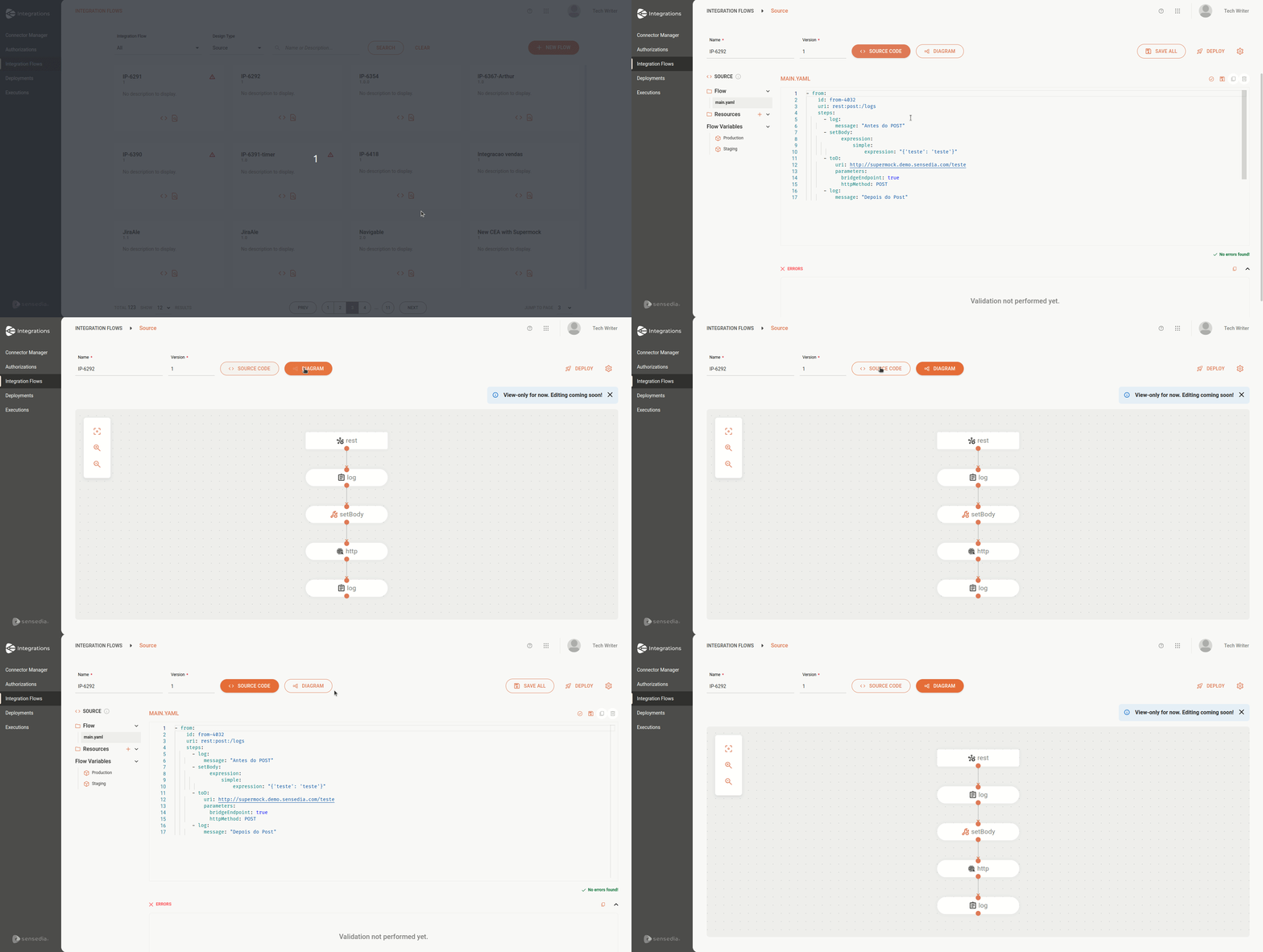
Viewing Source-type flows in diagram format
You can now view a Source-type integration flow in diagram format. This facilitates understanding and tracking of integration processes.
To access this functionality, follow these steps:
- Navigate to the desired Source-type flow.
- Switch to the Diagram tab at the top center of the Source screen.
- View the integration flow represented graphically, with components and connections clearly delineated.
August 2024
Improvement
- We optimized the update time of integration deployment status, accelerating the transition from "Deploying" to "Error", which previously showed slowness.
New Feature
-
New expression languages available
You can now use the following expression languages in your Source-type flows:
- JSONPath
- JQ
- OGNL
- XPath
- XQuery
Fixes
-
We fixed an error related to cron expression validation that occurred due to discrepancies between front-end and back-end validation libraries. To configure a cron expression, access the Scheduler Trigger page.
-
We fixed an error that occurred when deploying a Source-type flow when there were environment variables without double quotes (").
-
We fixed an error that occurred when saving a Source-type flow. The error was related to using the JSONPath expression language and returned status code
3001, without specifying what the error in the structure was. Now, the product explicitly signals which error in the code structure was identified, allowing the user to adjust the configuration before saving the integration. -
We fixed a problem where, when deleting the content of a Source-type integration and saving it, the operation returned code
200, but the file was not saved correctly. Now, the file is saved even when empty. -
We fixed a problem where deployment was recorded with
DEPLOYMENT_REQUESTEDstatus even when the request had not been sent to the data plane.
Improvement
- We improved error handling for integration files with invalid formatting. Now, the system will display a warning informing that the file is not in the expected format and will mark the flow as inconsistent, allowing for more efficient correction and avoiding unexpected failures.
July 2024
New Feature
-
Viewing execution logs of Source-type flows in Sensedia Analytics
To view the execution logs of your Source-type flow in Sensedia Analytics, use the
Logcomponent or EIP in the flow script.
Fix
- We fixed an error that occurred when deploying a Source-type flow, where the trigger
parameterswere lost in the script. Now, they are correctly preserved, ensuring the expected integrity and functionality of the flow.
Fix
- We fixed a timeout error that occurred when performing a search on the Executions screen. Now, if filtering returns more than one hundred thousand records, a message will be displayed requesting refinement of search criteria.
New Feature
-
New Camel components released
You can now use the XJ and XSLT components in your scripts.
Improvement
- Previously, when adding a new step to the canvas, it was always inserted in a default position, regardless of the flow layout. Now, when adding a new step, it will be positioned in the center of the screen, facilitating immediate visualization and improving usability.
Fix
- We fixed an error that didn't allow saving the OAUTH2 - Client Credentials authorization update.
New Feature
-
New connectors
- DB2
- MongoDB 7.0.6
New Feature
-
New general tool
The JSON Transformation v2 tool facilitates manipulation and transformation of JSON data between different systems and applications. In version 2, we removed the Input Data field, since you can use input and output data from more than one previous step in JSONata.
Check out all details on the JSON Transformation v2 page.
June 2024
Fix
- We fixed a problem that prevented saving an integration flow with the Choice v2 step. This problem occurred in the Input Data field of Choice v2 when selecting a step named with some special characters, such as the hyphen "-".
New Feature
Introducing Source Code
You can now create your integration flows using the CAMEL YAML DSL language, which significantly expands the variety of use cases supported by Sensedia Integrations.
NOTEFor detailed guidance on CAMEL YAML DSL, consult the official documentation (English only).
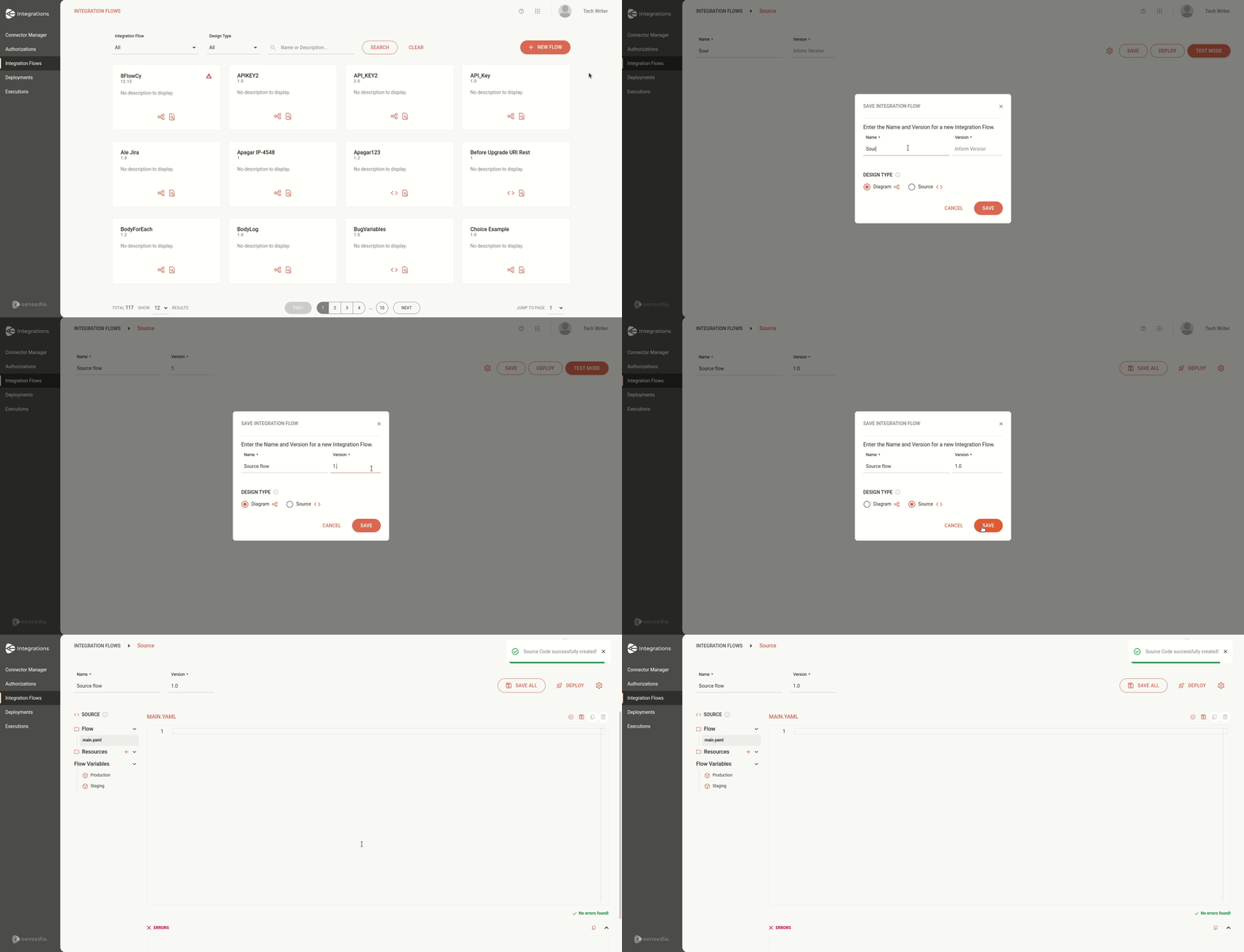
Check out below how to access the Source screen to create an integration flow:
Explore Source Code:
- Learn about the interface and screen elements.
- Follow the step-by-step to create and deploy an integration flow.
- Learn to build routes with Camel: components, EIPs, and restrictions.
- See an example.
April 2024
Improvement
-
Viewing For Each request logs
With this functionality, you can analyze the integration flow in detail and speed up problem resolution.
New Feature
-
New connector
- Azure SQL
New Feature
-
New connector
- Progress
March 2024
New Feature
-
New connector
- Events Hub
Improvement
-
Viewing JSON Transformation and Choice v2 request logs
With this functionality, you can analyze the integration flow in detail and speed up problem resolution.
New Feature
-
New connector
- SQL Server 2022
February 2024
Improvement
-
Viewing REST-type trigger request logs
With this functionality, you can analyze the integration flow in detail and speed up problem resolution.
New Feature
-
New connector
- Firebird 4.1.0.0
Improvements
-
For Each
Now, you can insert a For Each inside another For Each. This way, your integration flow will process data in structures with nested loops.
-
Connectors
We included the port field in the following database connectors:
-
MySQL 8.0.16
-
PostgreSQL 9.4
-
SQL Server 7.2
This way, you can connect to databases using ports different from the default.
-
January 2024
Improvement
-
Viewing connector request logs
With this functionality, you can analyze the integration flow in detail and speed up problem resolution.
Improvement
-
REST API Connector
You can now create your own REST API connector, which will be visible only to you. To do this, import a file with the Open API 3.0.0 specification and select the endpoints you want to use.
New Features
-
New general tool
With On Exception, you can execute alternative routes in the integration when there are errors that don't return a status code. This way, the integration flow execution is not interrupted.
Check out all details on the On Exception page.
-
New connectors
- ctreeACE-db 10.1
- Oracle 11g
- Oracle 19c
- Oracle 12c
- AWS Lambda