- Home
- Integrations
- FAQs - Integrations
FAQs - Integrations
FAQs
Sensedia Integrations FAQs are organized by thematic sections. If you have a question that you believe should be included here, you can write it in the feedback field at the end of this page.
Security and Access
Yes. You will need to redeploy the flow in the environment where the authorization data was changed for the changes to be applied.
Connectors
No. You will need to delete and create the REST API connector again. If the connector is in use, you will need to create a new connector with a new version.
Only the tenant that created the database connector (MYSQL, Oracle, PostgreSQL, etc.) can view it.
What is an instruction?
An instruction is a command or query used to interact with systems or services within an integration flow. They allow you to manipulate data or trigger operations, such as querying information, sending data, or executing specific actions, being essential for the exchange and management of information between integrated systems.
When configuring the form of a technical connector, you need to fill in the INSTRUCTION field according to the selected connector type. In this field, you will create a script using the native syntax of the protocol that the connector accesses.
IMPORTANTMost technical connectors available in Sensedia Integrations require instructions with SQL syntax.
How to write an instruction?
You can write the instruction in two ways, using Properties, which allow the use of environment variables and properties from previous steps in the flow:
-
Insert input attributes: Select the desired items in Properties from the left panel.
-
Create an expression: Combine items from Properties using the Concat function. To use it, click the fx button available to create expressions.
NOTECheck out more information about how to build SQL instructions and how to use the Concat function to create expressions.
See the videos below that demonstrate how to create a simple instruction for a MySQL connector:
- With the Concat function:
- Without the Concat function:
Integration Flows
Canvas
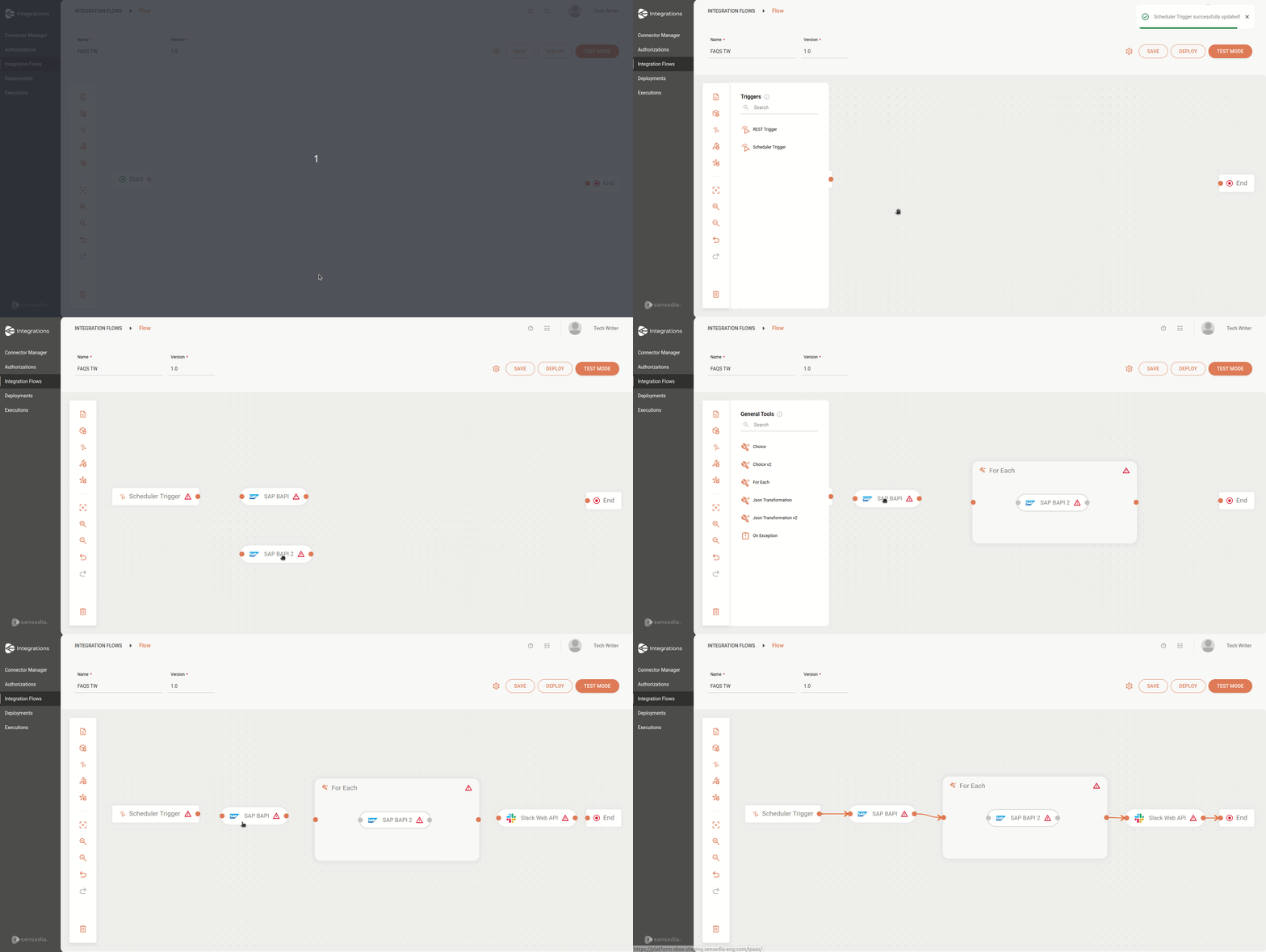
A Canvas type flow is created in a low-code environment, where you develop the integration flow visually. With the Flow graphical interface, you can build the flow by dragging and dropping elements on the screen, without the need to write code.
This type of flow allows you to easily add steps such as:
IMPORTANTThese flows have limited functionality.
The animation shows the process of selecting and including steps of an integration flow on the Flow screen:
NOTECheck out how to create a Canvas (legacy) type integration flow.
Diagram & Source Code
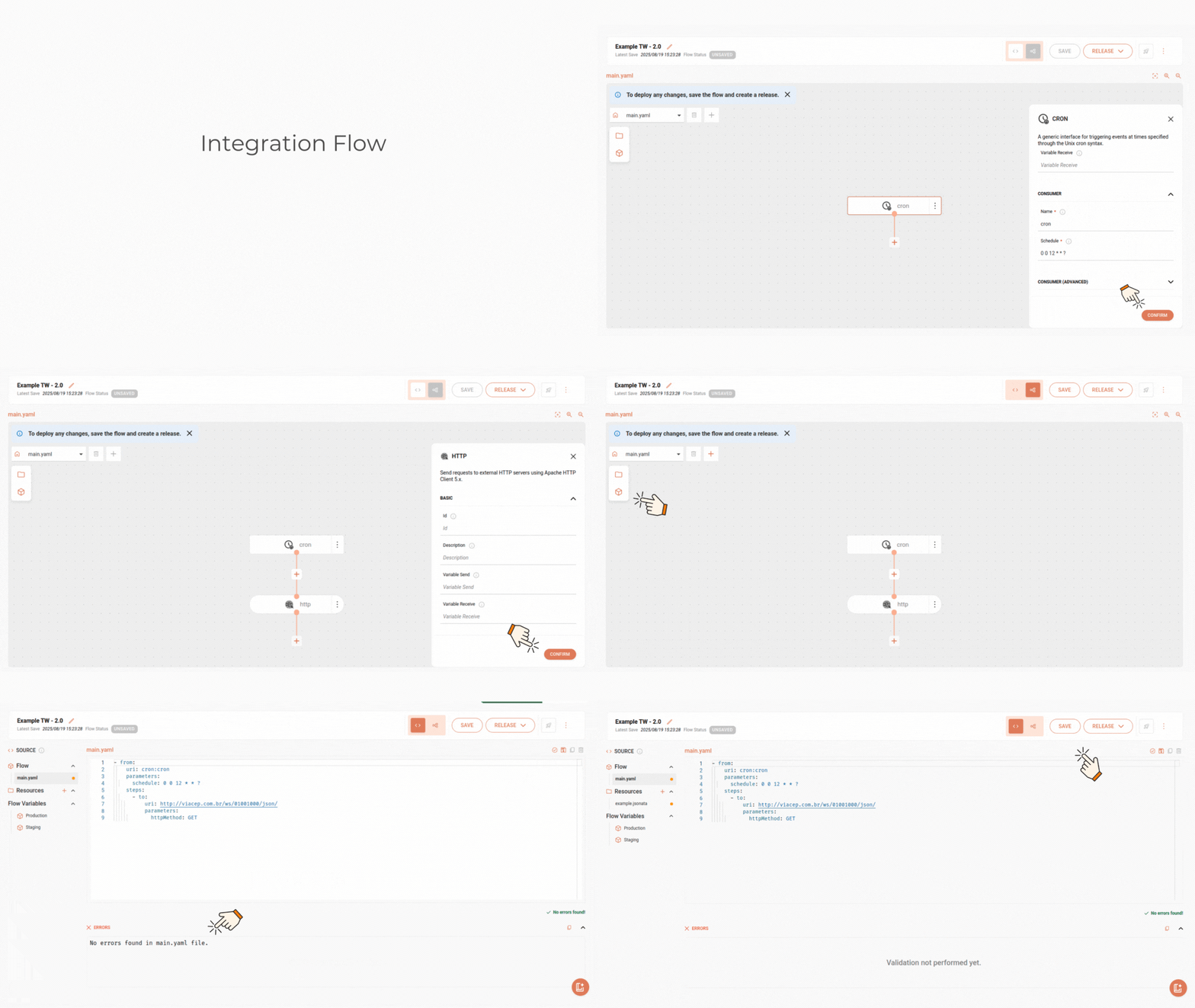
A Diagram & Source Code type flow combines code usage with the low-code experience. You can create flows directly in the Diagram tab (through forms) and then edit them in the Source Code tab, and vice versa.
This type of flow is ideal for more complex scenarios, where code flexibility is necessary for customizations or integrations with more detailed logic.
The animation shows how to create a Diagram & Source Code type flow and the functionalities of each tab:
NOTECheck out how to create a Diagram & Source Code type integration flow.
No. It is currently not possible to import or export integration flows.
Executions
If you cannot view the execution traces of a flow, it is possible that the traces feature is not enabled for your user in Access Control.
To enable trace viewing, your user must be associated with a role that has the Observability permission grouper selected along with the items below:
- Traces
- Traces List
- Traces View
The trace viewing option is only visible for executions performed after the traces feature has been enabled.
See how to create a role and enable permissions in Access Control